
Profile — Security
The Profile ▸ Security page is where every user controls how they sign in. Three sections cover the full lifecycle of credential management: password change, two-factor enrolment, and per-device session control.
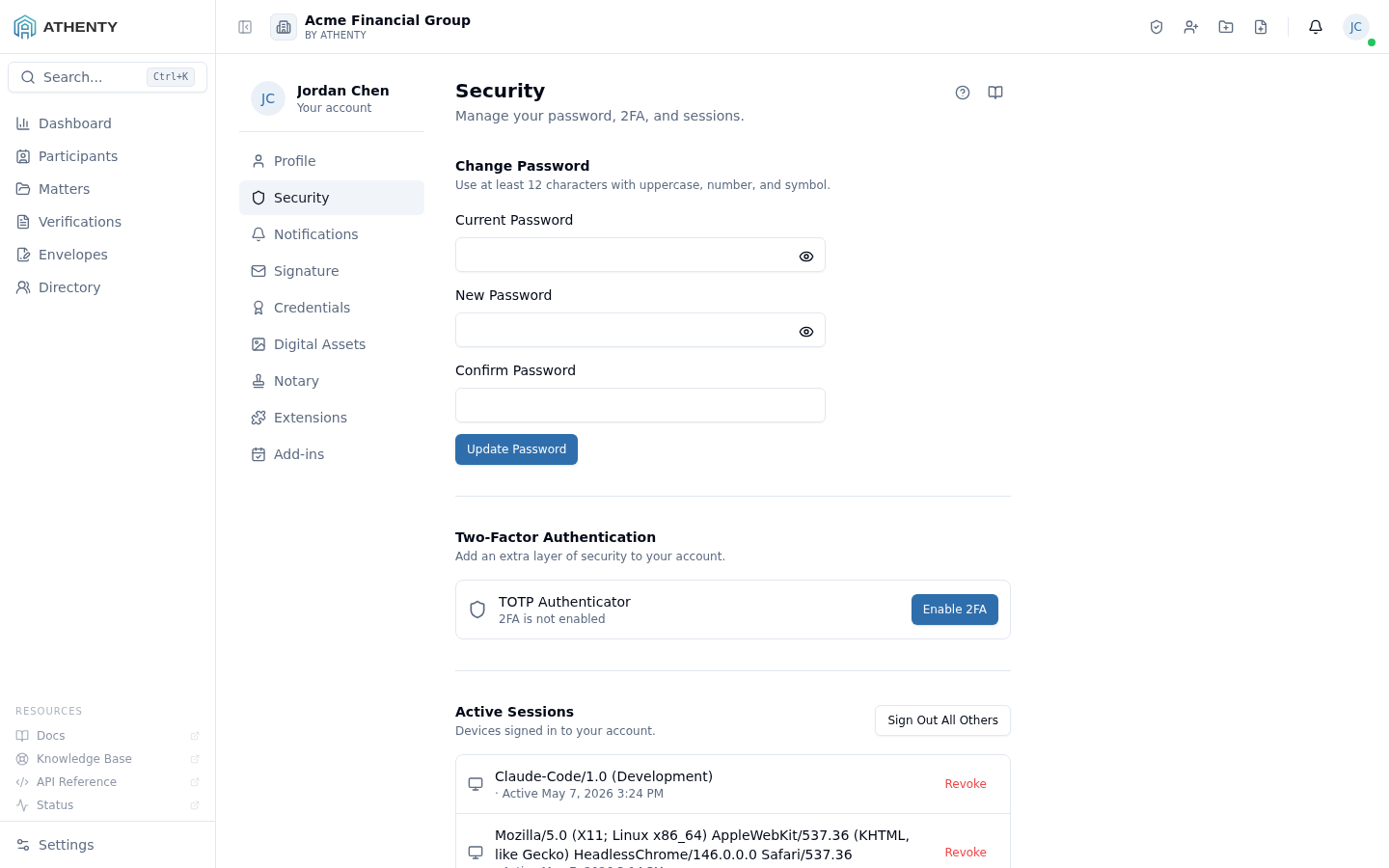
Anatomy of the page
Section titled “Anatomy of the page”1. Page header
Section titled “1. Page header”Standard PageHeader with the title Security and a one-line description. Lives at the top of the right-hand content panel; the Profile left-nav provides the Profile / Security / Notifications sub-navigation.
2. Change password section
Section titled “2. Change password section”A three-field form:
- Current password (required to authorize the change)
- New password (must satisfy the strength rules below)
- Confirm new password
Strength rules (Zod schema):
- ≥ 12 characters
- ≥ 1 uppercase letter
- ≥ 1 number
- ≥ 1 symbol
On successful change:
- Credential is updated server-side
- Every other active session is revoked (security default)
- The current session stays signed in
- The change is logged in the user’s audit feed
If your tenant is configured to use SSO for primary sign-in, the password fields are hidden — credential management lives in the identity provider.
3. Two-factor authentication section
Section titled “3. Two-factor authentication section”The TOTP-based 2FA flow:
- Generate — server emits a TOTP secret + QR code
- Scan — user adds the secret to their authenticator app
- Verify — user types a fresh code; server confirms the binding
- Save recovery codes — eight one-time codes shown once for offline storage
- Enabled — 2FA is active; subsequent sign-ins require a code
Once enabled, the section flips to display:
- A status pill (Enabled / Disabled)
- The enrolment timestamp
- Action buttons: Regenerate recovery codes, Disable 2FA
If the org has enforced 2FA under Settings ▸ Compliance, the Disable button is hidden — only an admin can override the enforcement flag, and disabling 2FA on a self-enforced tenant breaks the policy.
4. Active sessions section
Section titled “4. Active sessions section”A live list of sessions, identical in shape to the Profile ▸ General ▸
Sessions tab — both views are projections of the same sessions table.
Per-row data:
- Device name (parsed from User-Agent)
- IP address
- Best-effort geocoded city and country
- Last-active timestamp
- A Current badge on the session you’re using right now
Per-row action: Revoke. Top-of-section action: Sign out everywhere else when 2+ sessions exist.
Permissions and scope
Section titled “Permissions and scope”This page is per-user — every member sees only their own security settings. There is no admin override here; admin tooling for managing other users’ sessions and 2FA lives under Settings ▸ Team ▸ <user>.
Org-level policy
Section titled “Org-level policy”Several controls on this page are gated by org-level policy configured under Settings ▸ Compliance (admin-only):
| Policy | Effect on this page |
|---|---|
| 2FA enforced | Disable 2FA button hidden |
| Password rotation interval | Optional inline reminder banner when due |
| SSO required | Password section hidden; sign-in via IdP |
Audit logging
Section titled “Audit logging”Every action on this page emits an audit event:
auth.password_changedauth.2fa_enabledauth.2fa_disabledauth.2fa_recovery_codes_regeneratedauth.session_revoked
Events surface in the user’s own Profile ▸ Security ▸ Activity tab and in the org-wide Settings ▸ Audit Log.
Troubleshooting
Section titled “Troubleshooting”| Symptom | Most likely cause | Fix |
|---|---|---|
| Password rejected on save | Doesn’t satisfy strength rules | The form lists the failing rule below the field |
| 2FA QR code expired | Tab idle too long | Click Regenerate to get a fresh secret |
| Authenticator code rejected | Device clock drift > 30 s | Verify system time on the phone; some apps offer manual sync |
| Locked out — lost device + lost recovery codes | Self-recovery exhausted | Contact an org admin to reset 2FA |
| Session list missing a device | UA fingerprint mismatch | Sign out and back in on that device |
| New password keeps signing me out | Working as designed — global revoke | Re-sign in once after a password change |
Related pages
Section titled “Related pages”- Profile ▸ General — the broader profile view; Sessions tab mirrors this page
- Profile ▸ Security ▸ Notifications — your per-channel notification preferences
- Settings ▸ Compliance — org-level password and 2FA policy
- Settings ▸ Audit Log — full event history for admins