
Managing Matters
The Matter Workspace
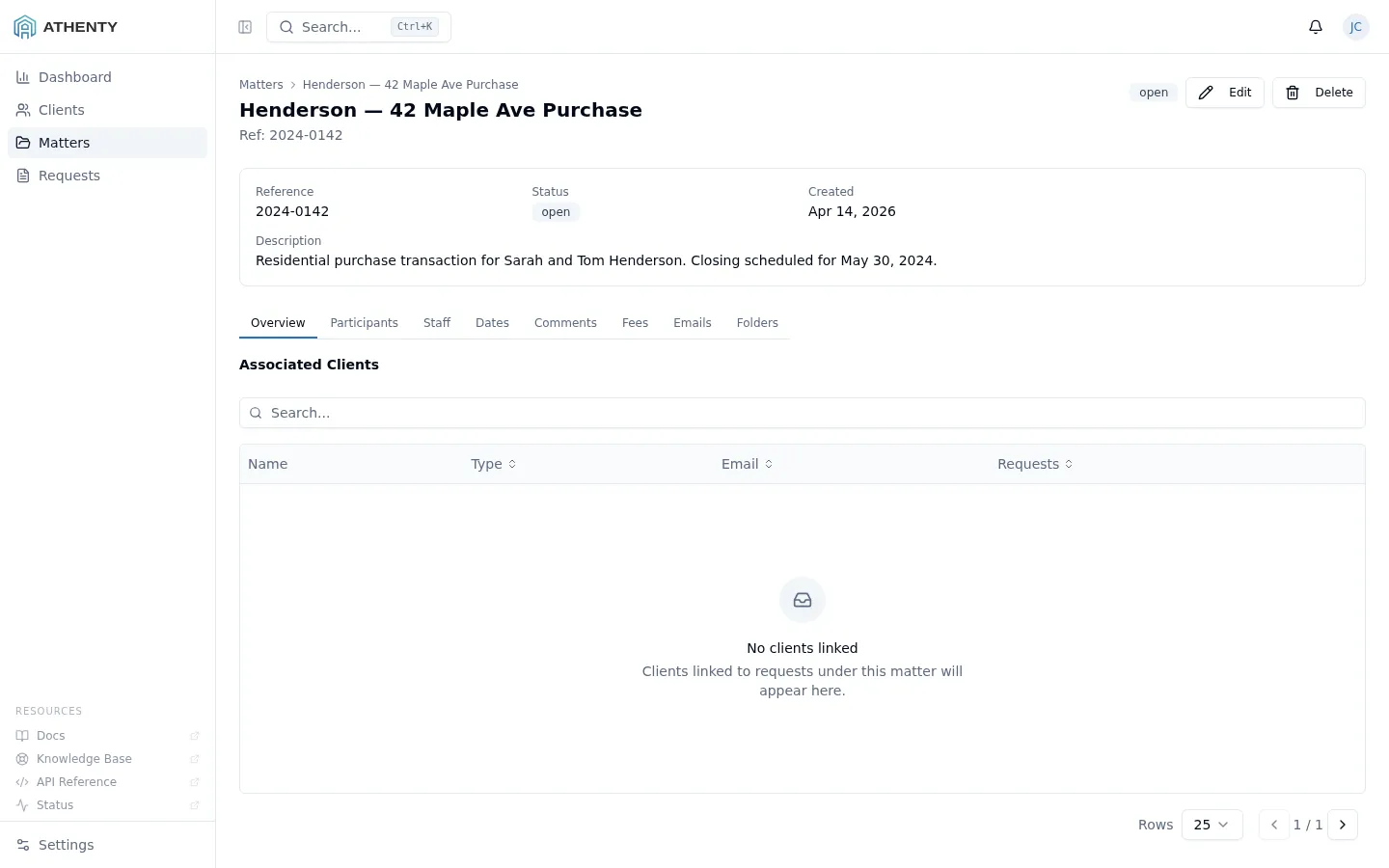
Section titled “The Matter Workspace”Each matter opens to a tabbed workspace. The tabs are always visible at the top of the matter — click any tab to switch between views.
Overview Tab
Section titled “Overview Tab”The Overview tab is the landing view for any matter. It shows:
- Matter name, type, and current status
- A free-text description field
- Summary metrics — participant count, upcoming dates, outstanding fees
You can edit the matter name, type, status, and description directly from this tab. Click Save after making changes.
Matter Status
Section titled “Matter Status”| Status | Meaning |
|---|---|
| Open | Active matter, work in progress |
| In Progress | Actively being worked on |
| Pending | Waiting on a third party or milestone |
| Closed | Matter completed or archived |
Participants Tab
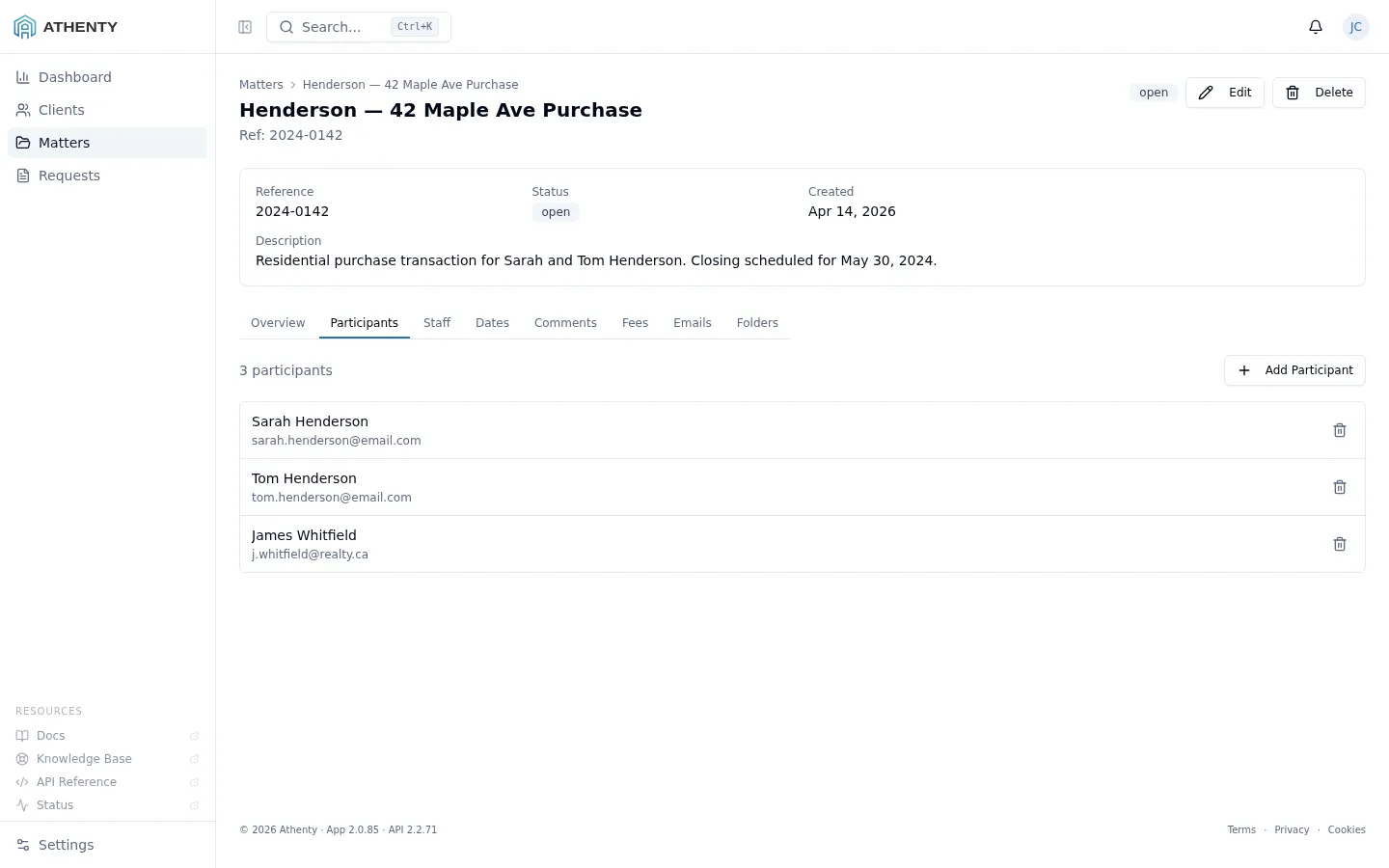
Section titled “Participants Tab”The Participants tab tracks everyone involved in the matter — clients, counterparties, lenders, and other contacts.
Adding a Participant
Section titled “Adding a Participant”- Click Add Participant.
- Search for an existing client in your Athenty account, or enter details for a new contact.
- Assign a role (e.g., Buyer, Seller, Guarantor, Lender, Tenant, Landlord, Other).
- Click Add.
Participants linked to existing Athenty clients will show their verification status. You can launch a new identity verification request directly from a participant record.
Dates Tab
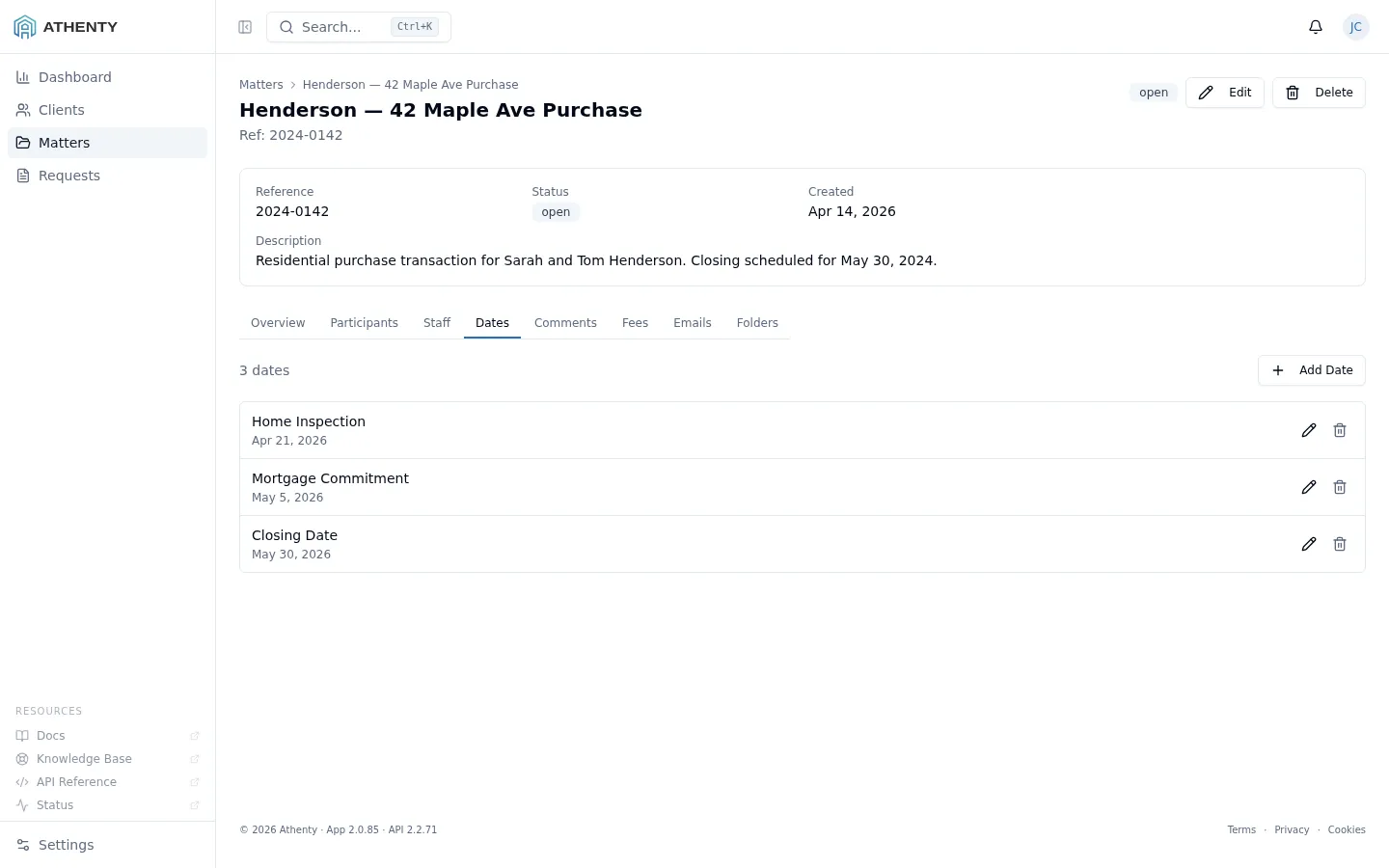
Section titled “Dates Tab”The Dates tab records key milestones and deadlines for the matter.
Adding a Date
Section titled “Adding a Date”- Click Add Date.
- Select a date type (e.g., Inspection, Mortgage, Closing, Signing, Expiry, Other).
- Enter the date and an optional description.
- Click Save.
Dates are displayed in chronological order. Overdue dates are highlighted. Upcoming dates within 7 days appear in the matter overview summary.
Fees Tab
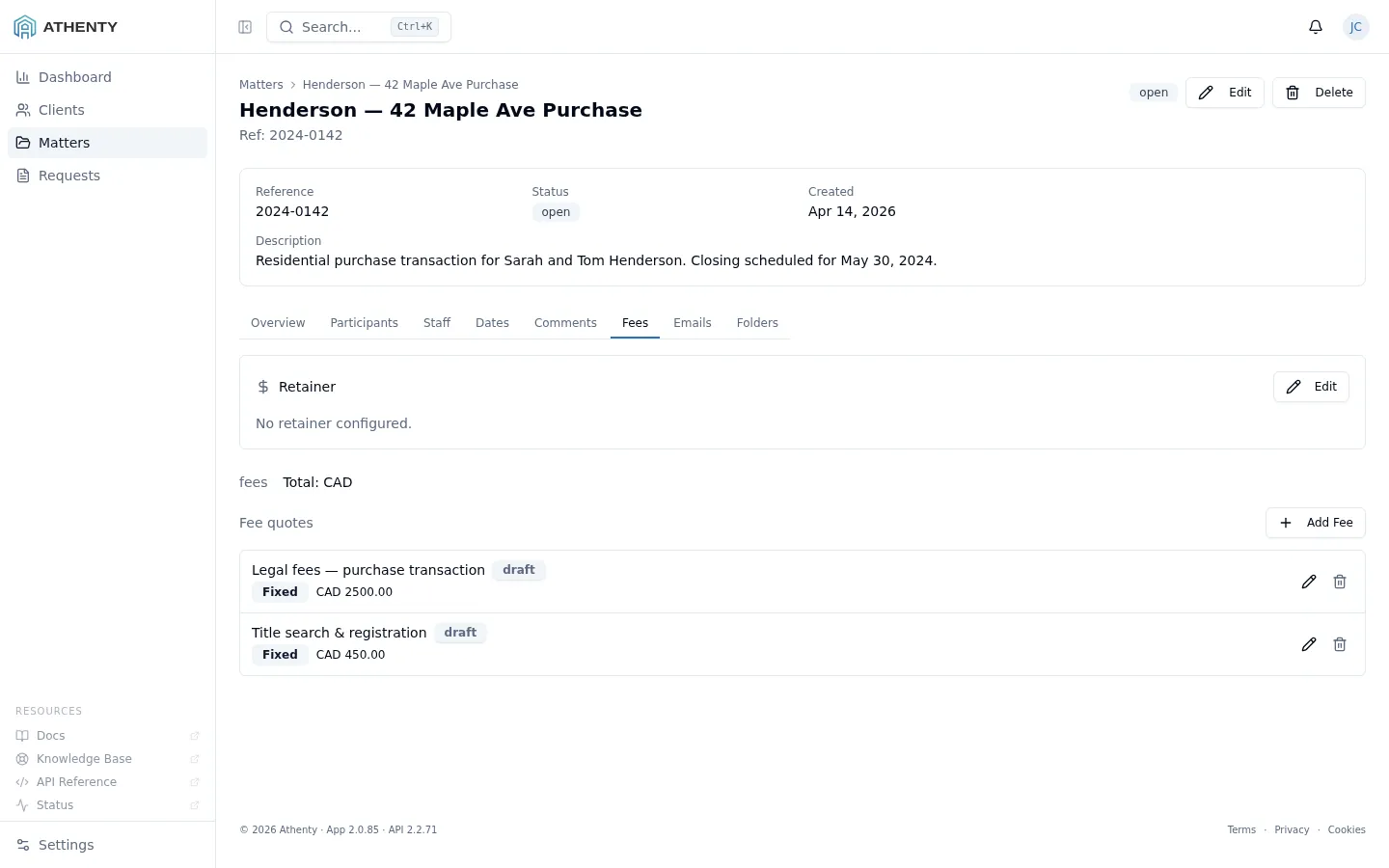
Section titled “Fees Tab”The Fees tab tracks monetary amounts associated with the matter — legal fees, disbursements, title insurance, retainers, and other charges.
Adding a Fee
Section titled “Adding a Fee”- Click Add Fee.
- Enter:
- Description — what the fee is for
- Amount — the dollar amount
- Currency — CAD or USD
- Status — Owing, Paid, or Waived
- Click Save.
The tab footer shows a running total of outstanding and paid amounts.
Emails Tab
Section titled “Emails Tab”The Emails tab shows all emails linked to this matter from the Outlook or Gmail add-ins.
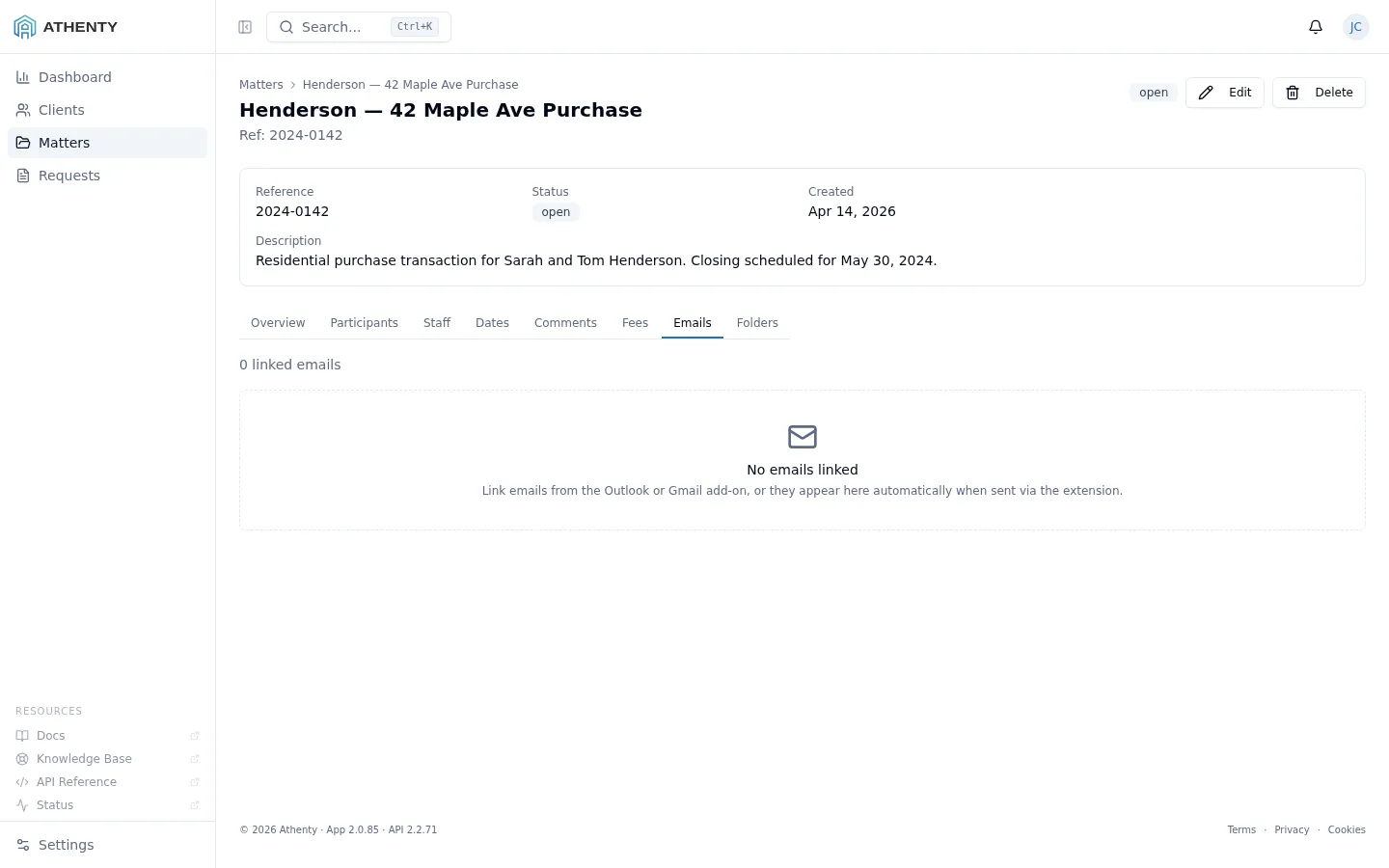
Emails are linked from within your email client using the Outlook Add-in or Gmail Add-in. Each linked email shows:
- Subject line
- Sender and recipients
- Date and time
- Body snippet
- Attachment names and sizes
Click any email entry to expand the full body text captured at link time.
Note: Emails cannot be linked directly from the Athenty portal — they must be linked from within Outlook or Gmail using the paired add-in.
Folders Tab
Section titled “Folders Tab”The Folders tab provides a standard document folder structure for organizing files related to the matter.
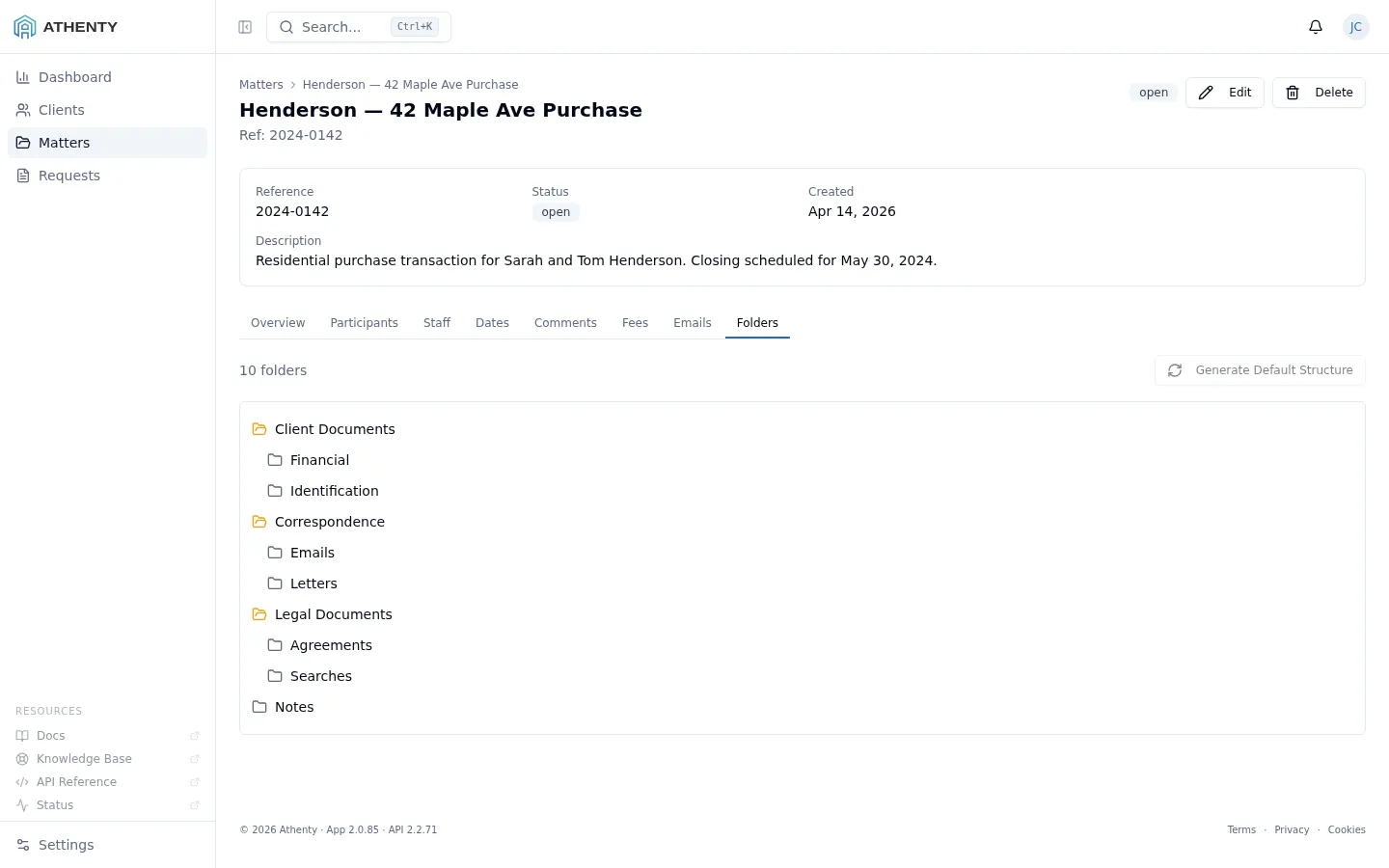
Each matter is created with a default set of folders. You can:
- Add a folder — click New Folder to create a custom folder
- Rename a folder — click the folder name to edit it
- Delete a folder — right-click or use the overflow menu (only empty folders can be deleted)
Folders are organizational — they do not store files in Athenty directly. Use them as labels that correspond to folders in your document management system or file server.
Comments Tab
Section titled “Comments Tab”The Comments tab is an internal notepad for the matter — visible only to staff members on your Athenty account.
Add a comment by typing in the text box and clicking Post. Comments are timestamped and attributed to the posting user. They cannot be edited or deleted after posting, ensuring a reliable internal audit trail.
Closing a Matter
Section titled “Closing a Matter”To close a matter:
- Open the matter and go to the Overview tab.
- Change the Status to Closed.
- Click Save.
Closed matters remain fully accessible and searchable. All linked emails, fees, dates, participants, and comments are preserved. Matters cannot be permanently deleted — they can only be closed and archived.