
Using the Outlook Add-in
Linking an Email to a Matter
Section titled “Linking an Email to a Matter”1. Open an Email
Section titled “1. Open an Email”Open any email in Outlook — in the reading pane or in its own window. The Athenty Matter Planner add-in activates automatically when an email is open.
2. Open the Task Pane
Section titled “2. Open the Task Pane”Click Athenty Matter Planner in the add-in toolbar above the reading pane. If you don’t see it, click the three-dot overflow menu and look for it there. The task pane slides open on the right side of the email.
3. Search for a Matter
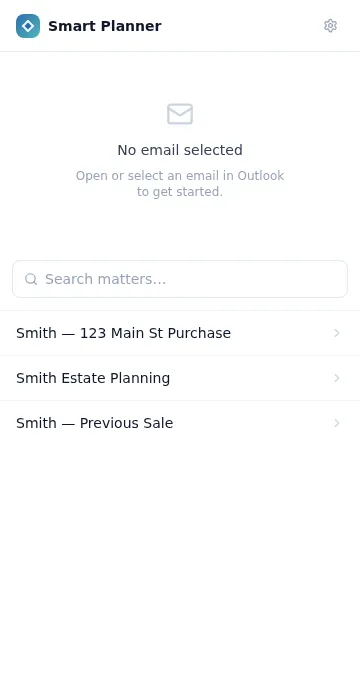
Section titled “3. Search for a Matter”Type a matter name or number in the search box. Results appear from your Athenty account in real time. If no search term is entered, recently active matters are shown by default.
4. Select a Matter
Section titled “4. Select a Matter”Click the matter you want to link the email to. A preview appears showing the email subject, sender, date, and a snippet of the body — confirm this is the correct email.

5. Link
Section titled “5. Link”Click Link to matter. A confirmation screen appears showing the matter name and a link to View in Athenty — which opens the matter’s Emails tab in your browser.
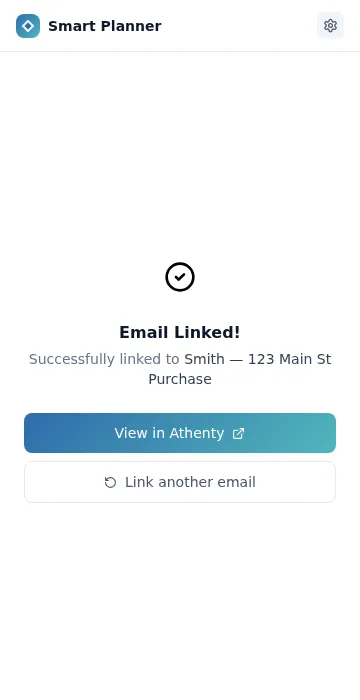
The email is now attached to the matter. It appears under the Emails tab in the matter detail view in your Athenty dashboard.
Viewing Linked Emails
Section titled “Viewing Linked Emails”Linked emails appear in the matter’s Emails tab in app.athenty.com. Each entry shows:
- Subject line
- Sender
- Recipients (To and CC)
- Date and time
- Body snippet
- Attachment list (names and sizes)
- Source channel (“extension”)
You can open the full email record to see the complete body text captured at link time.
Settings
Section titled “Settings”Click the Settings gear icon in the top right of the task pane to open the Settings screen. It shows:
- Your organization name
- Your name and role
- The date the add-in was first paired
- The add-in version
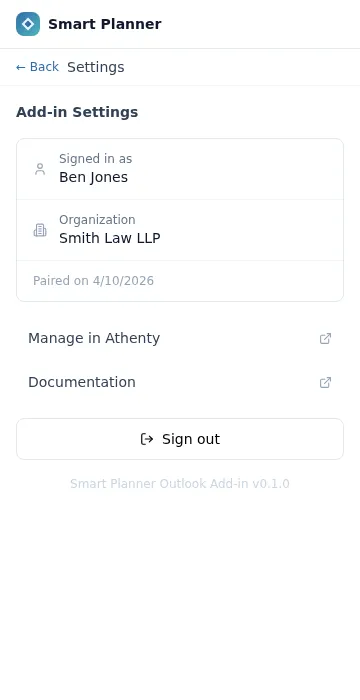
Click Sign out to disconnect the add-in and return to the pairing screen.
What Gets Captured
Section titled “What Gets Captured”When you link an email, the following is sent to Athenty Matter Planner:
| Field | Notes |
|---|---|
| Subject | Full subject line |
| From | Display name + email address |
| To | All recipients |
| CC | All CC recipients |
| Date | Sent timestamp (UTC) |
| Message ID | Internet message ID for deduplication |
| Conversation ID | Outlook conversation thread ID |
| Body (plain text) | Up to 65,000 characters |
| Body (HTML) | Up to 65,000 characters (stripped of style blocks) |
| Attachments | Filename, MIME type, and size only |
Attachment content is not uploaded in v1. The filename and size are captured as metadata. Full attachment upload is planned for a future release.
Current Limitations
Section titled “Current Limitations”- Read-only: The add-in can only read the currently open email. It cannot compose, reply, forward, or send.
- Compose mode: Linking from a draft or compose window is not supported. Only emails in the reading pane can be linked.
- Attachment content: Attachment metadata (filename, MIME type, size) is captured, but file content is not uploaded.
- Offline mode: The add-in requires internet access to reach the Athenty API. Linking is not available while offline.
Troubleshooting
Section titled “Troubleshooting”The matter search shows no results. Check that your organization has active matters with names matching your search term. If Matter Planner is newly enabled, create a matter in your Athenty dashboard first.
“Upgrade required” appears instead of the matter picker. This means Matter Planner is not enabled on your organization’s plan. Go to athenty.com/pricing or contact your admin.
“Session expired. Please re-pair.” Your refresh token has expired or been revoked. Generate a new pairing code in Settings → General → Matter Planner Add-ins and re-pair using the task pane.
The task pane shows a blank white screen. Try closing and re-opening the task pane, or reload Outlook. If the problem persists, check your internet connection and try again.