
Directory
The Directory is the read-only staff browser shared with every member of your organization. Where Participants is the cross-matter relationship view (clients, counterparties, third-parties, and internal staff), the Directory is staff-only — your colleagues, their roles, and how they’re organized.
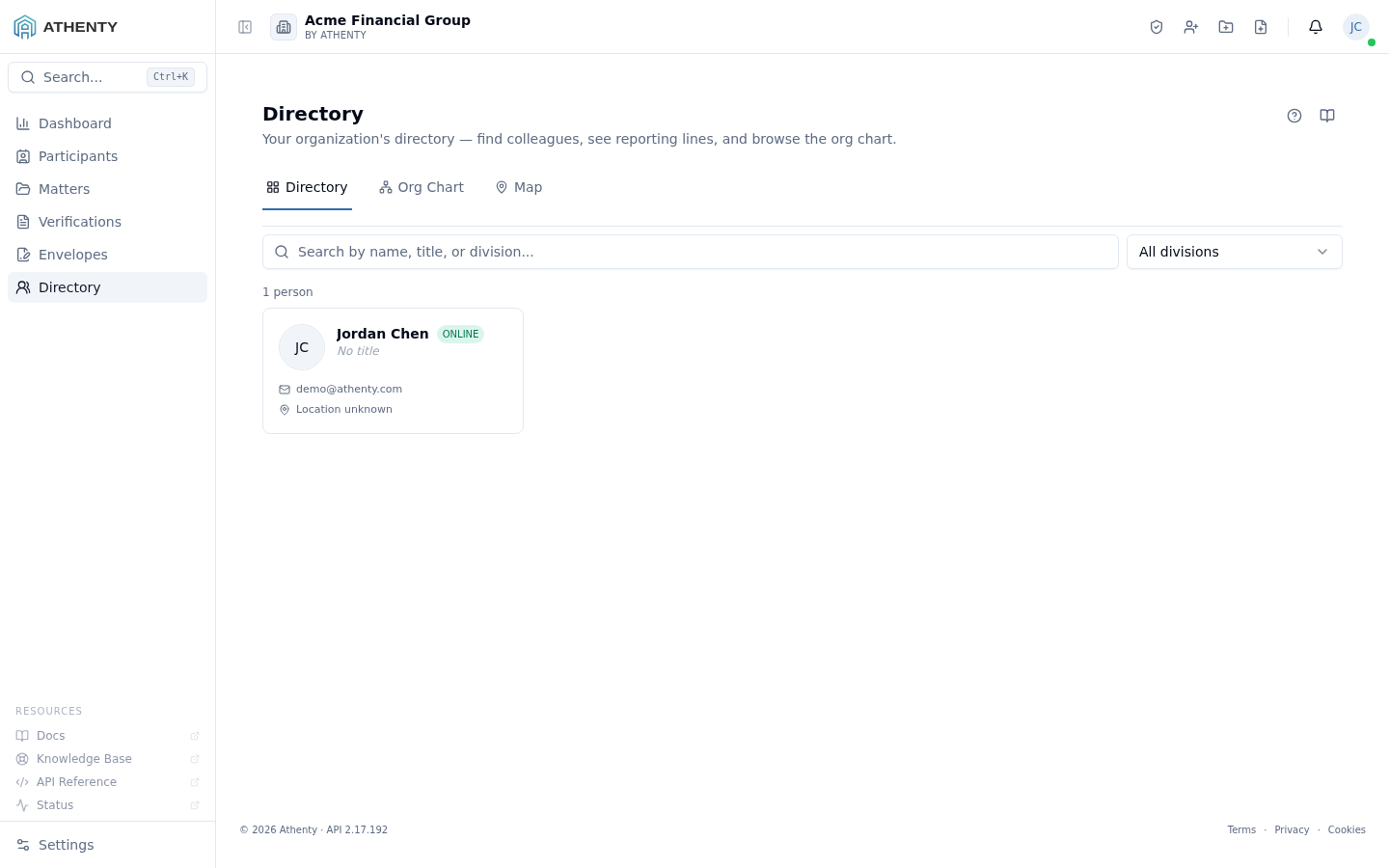
Anatomy of the page
Section titled “Anatomy of the page”1. Header and utility icons
Section titled “1. Header and utility icons”Standard PageHeader with title, description, and the Help (?) and Docs (book) icons. There are no bespoke actions on this page — directory edits live under Settings ▸ Team.
2. Tabs
Section titled “2. Tabs”Three tabs render the same directory data in different ways:
| Tab | View |
|---|---|
| Directory | Card grid (default) |
| Org Chart | Interactive reporting tree |
| Map | World map with team markers |
3. Filters (Directory tab only)
Section titled “3. Filters (Directory tab only)”- Search box — matches name, title, and division. Debounced 250 ms.
- Division dropdown — sourced from Settings ▸ Managed Lists ▸ Divisions.
The Org Chart and Map tabs render the full active directory regardless of the Directory-tab filters.
4. Person side panel
Section titled “4. Person side panel”Clicking any card or org-chart node opens a slide-in side panel with the full profile — avatar, contact info, manager, direct reports, division, and an optional Settings ▸ Team link for admins.
Each directory card shows:
- Avatar (initials fallback)
- Full name + role/title
- Division
- Location (office name or remote-city)
- Email + phone (if populated)
The card list is responsive — 1 column on small screens, up to 4 on XL.
Org Chart
Section titled “Org Chart”The Org Chart uses the manager relationships configured per-user under Settings ▸ Team. The view starts from the top of the tree and is expandable/collapsible by clicking any node. Multiple roots are supported when your org has several independent business units.
The chart is fully interactive — clicking a node opens the same person side panel as the Directory cards.
The Map tab plots every active user on a world map. The marker location is resolved in this order:
- The user’s office (from their assigned location, geocoded)
- The user’s remote city if they don’t have a fixed office
Hover any marker for a popover with name, title, and division.
Permissions and scope
Section titled “Permissions and scope”| Role | What they see |
|---|---|
| All members | Every active user across the organization |
| Owner / Admin | Same view + admin tooling under Settings ▸ Team |
The Directory is intentionally a read-only artifact — you cannot edit a profile from here. Edits flow through Settings ▸ Team (admin) or Account ▸ Profile (self).
Pending-invite users and deactivated users do not appear here. They are visible to admins under Settings ▸ Team.
Data freshness
Section titled “Data freshness”Manager relationships, divisions, and locations come from the same canonical sources used elsewhere in the portal:
- Manager →
users.manager_user_id(set in Settings ▸ Team) - Division → Settings ▸ Managed Lists ▸ Divisions
- Location → Settings ▸ Locations (if assigned to a fixed office) or the remote-city field on the user’s account profile
Changes in any of those flow through to this page on the next page load.
Troubleshooting
Section titled “Troubleshooting”| Symptom | Most likely cause | Fix |
|---|---|---|
| Empty list | Filters too narrow, or no active users | Clear filters; verify tenant has users under Settings ▸ Team |
| Missing person | Deactivated or pending-invite | Confirm under Settings ▸ Team; only active users render |
| Org Chart blank | No manager relationships configured | Set managers in Settings ▸ Team |
| Map shows zero markers | No locations set | Encourage staff to fill in Account ▸ Profile location |
| Stale division name | User’s profile still references the old name | Edit the user under Settings ▸ Team |
Related pages
Section titled “Related pages”- Participants — broader cross-matter directory including counterparties and third-parties
- Settings ▸ Team — admin tooling for invites, roles, deactivations, manager assignments
- Settings ▸ Locations — office locations used by the Map tab
- Settings ▸ Divisions — the canonical division list powering the filter dropdown