
Matters
A Matter is the unit of work in Athenty. Every verification, envelope, participant, and document lives under a matter, which makes the Matters page the operational heart of the portal. From here you triage your caseload, filter by status or staff, export for reporting, and create new matters.
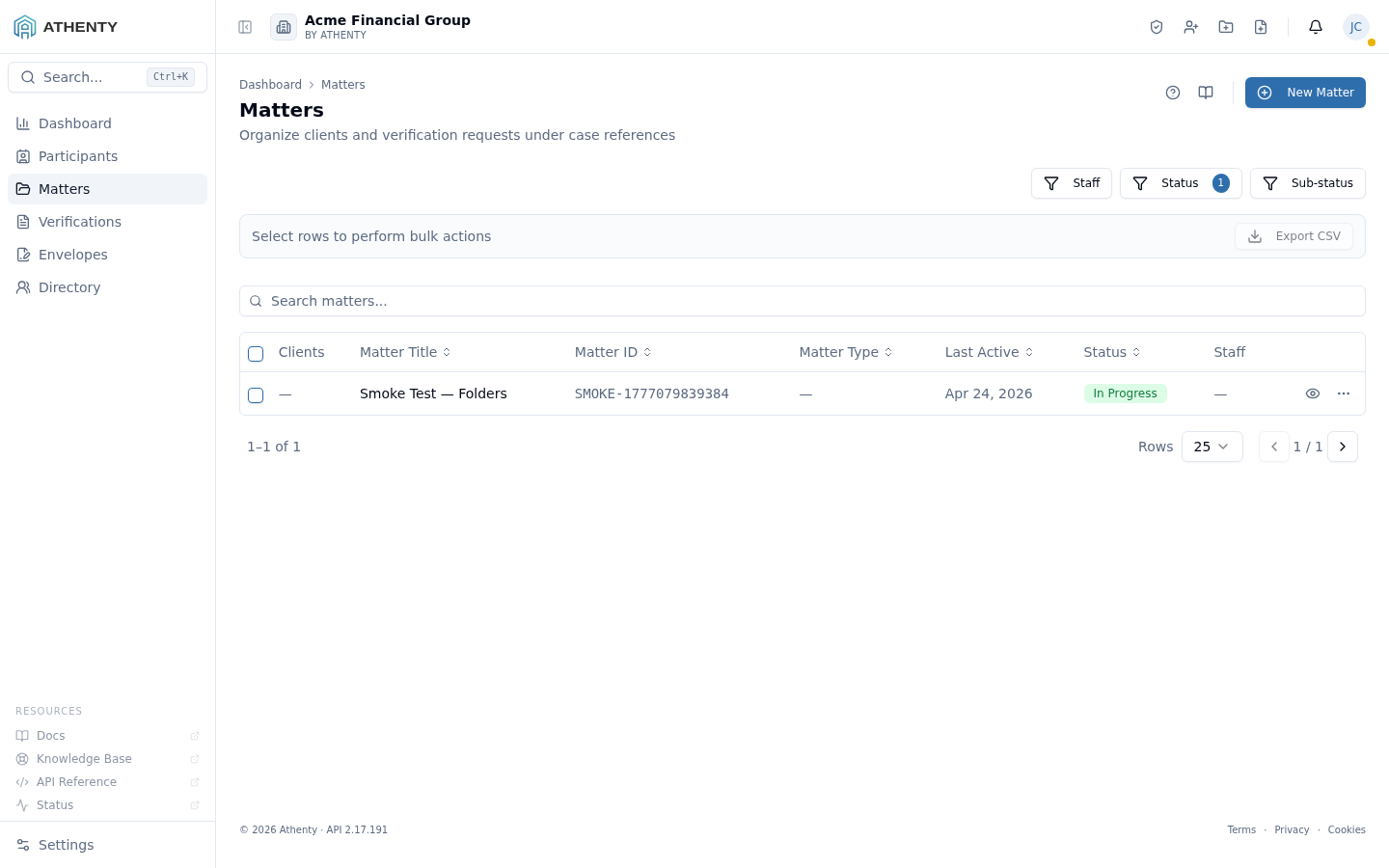
Anatomy of the page
Section titled “Anatomy of the page”1. Header and utility icons
Section titled “1. Header and utility icons”The header shows the title Matters, a one-line description, and the standard Help (?) and Docs (book) icons in the top-right. To the right of those sits the New Matter button — the primary action on this page. On smaller viewports the button collapses to icon-only with a tooltip.
2. Filters
Section titled “2. Filters”Three dropdowns above the table:
- Staff — single-select; show matters assigned to a specific user
- Status — multi-select; defaults to Open
- Sub-status — only visible when Open is selected; refines by workflow stage
The default is intentional — most users live in their open caseload. Clear the Status filter to see closed and archived matters too.
3. Search
Section titled “3. Search”Matches matter title and Matter ID as you type. Search respects the active filters, so a hit must satisfy both your query and your filters.
4. Bulk actions
Section titled “4. Bulk actions”Tick a row checkbox and a bulk action bar appears under the filters with the selected count and available actions:
- Export CSV — downloads the selected rows with all columns
Selecting many rows with shift-click is supported on the table header.
5. Matters table
Section titled “5. Matters table”| Column | Description |
|---|---|
| Clients | Cell-level renderer that lazy-loads the participants for the row; truncates with a tooltip on overflow |
| Matter Title | Linked title; lock icon if you lack access |
| Matter ID | Linked monospace reference |
| Matter Type | Resolved label from your Managed Lists |
| Last Updated | When the matter record itself was last edited (see below) |
| Last Activity | When something last happened inside the matter (see below) |
| Status | Pill badge; combined with sub-status when present |
| Staff | First two assignee names with +N overflow |
| Actions | Open (eye icon) and a row menu with Edit and Archive |
Last Updated vs Last Activity
Section titled “Last Updated vs Last Activity”These two dates look similar but answer different questions, and both appear on the matters list and at the top of each matter’s detail page:
- Last Updated changes when the matter record itself is edited — for example its title, status, matter type, primary client, or staff assignments. If nobody touches the matter’s own fields, this date stays put.
- Last Activity changes when something happens inside the matter, even when none of the matter’s own fields change. It bumps on material work such as a trust or general ledger entry, a document upload, an envelope sent or completed, a verification approval, a participant or staff change, or a new matter date.
Use Last Activity to find matters that have genuinely gone quiet: a matter can show a recent Last Updated simply because someone renamed it, while its Last Activity reveals that no real work has happened in weeks. Sorting a stale-matter review by Last Activity is the reliable way to surface files that need attention.
Creating a matter
Section titled “Creating a matter”The New Matter button opens a slide-out form on the right. The form captures the title, a primary client, the matter type, and assigned staff. After save you are taken to the matter detail page where you can add additional participants, upload documents, run Verifications, and send Envelopes.
If a primary client picker is filled in, the platform automatically attaches that client as the primary participant on save. If that step fails for any reason the matter is still created, and you can attach the participant manually from the matter detail page.
Access control
Section titled “Access control”Matters are scoped to the user’s view:
- Owners and admins see every matter in the Organization.
- Members see matters they are assigned to and any they have been granted access to.
- Viewers see read-only tiles — no create, edit, or archive.
A locked-row appearance (🔒 in the Matter Title cell) means another team owns the matter. Clicking the row opens a request-access dialog that emails the matter owner. Approval flows through their Notifications feed.
Archiving
Section titled “Archiving”Archive is a soft-delete: the matter is removed from the default Open view but preserved for audit purposes. To see archived matters, clear the Status filter or pick Archived explicitly. Archived matters can only be re-opened from the matter detail page, never from the list.
Permissions and scope
Section titled “Permissions and scope”| Role | Caseload | Create | Edit | Archive |
|---|---|---|---|---|
| Owner / Admin | All | ✓ | ✓ | ✓ |
| Member | Assigned only | ✓ | ✓ (own matters) | ✓ (own matters) |
| Viewer | Assigned only | ✗ | ✗ | ✗ |
Troubleshooting
Section titled “Troubleshooting”| Symptom | Most likely cause | Fix |
|---|---|---|
| Empty list | The default Open filter excludes everything you have | Clear Status; or ask an admin to assign you to matters |
| Locked rows everywhere | You are a member with no assignments | Speak to your admin or click each row to request access |
| Status pill shows blank | A new sub-status was added in Managed Lists but no label is set | Edit the entry under Settings ▸ Managed Lists |
| Bulk Export only includes some columns | The CSV uses a fixed export schema, not the visible columns | Use the matter detail export for full per-matter detail |
Related pages
Section titled “Related pages”- Participants — directory view across all matters
- Verifications — IDV / KYC requests filed against matters
- Envelopes — signed-document packets, also filed against matters