
Profile — General
The Profile ▸ General page is the user-facing view of your personal HR record. The same record is editable end-to-end by admins under Settings ▸ Team; this page is your own scoped, partly-suggestable view of it.
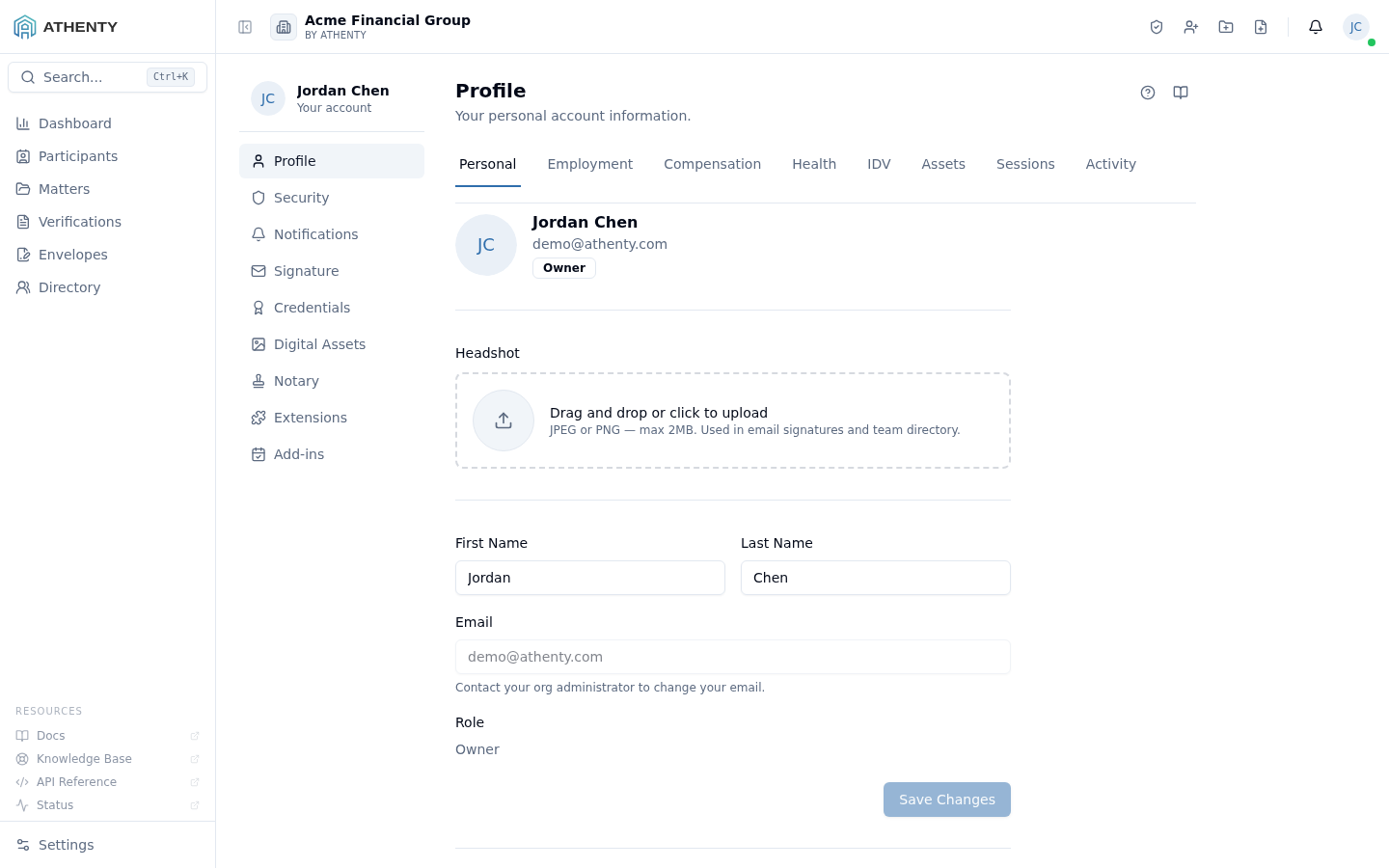
Anatomy of the page
Section titled “Anatomy of the page”1. Page header
Section titled “1. Page header”Standard PageHeader with the title Profile and a one-line description. The Profile area in the portal uses a left sub-nav (Profile, Security, Notifications, etc.); this header sits at the top of the right-hand content panel.
2. Tab strip
Section titled “2. Tab strip”Eight tabs partition the underlying record by sensitivity and authority:
| Tab | Editability |
|---|---|
| Personal | Direct edit (name, headshot, timezone) + suggest-edit (home address) |
| Employment | Read-only with suggest-edit on suggestable fields |
| Compensation | Read-only — HR-managed, never suggestable |
| Health | Suggest-edit on the conditions field; encrypted at rest |
| IDV | Read-only verification status |
| Assets | Read-only hardware + software |
| Sessions | Per-device revoke |
| Activity | Read-only audit feed |
The active tab is reflected in the URL as ?tab=<id>, so you can deep-link
to a specific tab from email or chat.
3. Tab body
Section titled “3. Tab body”The body changes per tab. Common patterns:
- A Quick fill address autocomplete on Personal that bulk-suggests every address line in one operation
- A Suggest pencil next to fields configured as suggestable; clicking opens an inline editor that files a change request to HR
- A Pending pill next to fields that have an in-flight change request
- A Read field for everything HR-managed and not suggestable
Suggest-edit pattern
Section titled “Suggest-edit pattern”The portal’s HR records are designed around a suggest-edit pattern rather than direct write access. The flow:
- User clicks the pencil on a suggestable field
- Inline editor opens with the current value
- User types the proposed change and confirms
- Change request goes into HR’s queue (visible under Settings ▸ Team ▸ <user>)
- HR accepts, counters, or rejects
The user sees the request status as a Pending pill while it’s open and as an entry in the Activity tab once resolved.
Personal tab
Section titled “Personal tab”The editable parts:
- Name — first and last, persisted via
PATCH /auth/me. Saved on Submit; no auto-save. - Headshot — drag-and-drop or click-to-pick. Uploads to your S3 bucket; the URL is stored on the user’s profile.
- Home address — six fields (line 1, line 2, city, state/province, postal, country) plus a Quick fill autocomplete that suggests changes to all populated fields in a single API call.
- Timezone — your personal display timezone. Defaults to Org default (the organization timezone from Settings ▸ Organization), so it is never unset; picking your own zone changes what you see on screen only. See How dates and times work for the full rules (recorded dates never shift; documents print times in labelled UTC).
The Email field is intentionally disabled; email changes flow through admin tooling because they affect account recovery and SSO mapping.
Employment tab
Section titled “Employment tab”Read-only with suggest-edit on:
- Title
- Date of birth
- Default work location (when you have multiple assigned)
- Emergency contact (JSON: name/phone/relationship)
Read-only fields (HR-managed only):
- Employee number
- Employment type (resolved against Settings ▸ Managed Lists ▸ Employment Type)
- Hire date / start date / end date
- Last login timestamp
The Default Work Location picker only renders when you have at least one work location assigned. Picking one triggers a suggested change to HR; the actual default doesn’t flip until they accept.
Compensation tab
Section titled “Compensation tab”Two read-only fields — Salary Band (resolved against Settings ▸ Managed Lists ▸ Salary Band) and Currency. By policy these are never suggestable; raise and band changes happen offline with HR.
Health tab
Section titled “Health tab”A single suggestable text field for Health conditions / accommodations. Stored encrypted at rest and auto-purged 24 hours after your end date. First write captures consent; the consent timestamp is shown below the field once recorded.
IDV tab
Section titled “IDV tab”Reads from your HR record’s idv_status field. If HR has run an IDV check
on you (typically as part of onboarding for licensed roles), the status
and completion timestamp display here. If no IDV has been run, the tab
shows a lightweight empty state.
Assets tab
Section titled “Assets tab”Renders the same AssetsPanel component used in Settings ▸ Team but
in read-only mode. Two sections: Hardware and Software. Edits flow through
HR; the user sees the current state.
The legacy /account/assets route redirects to this tab.
Sessions tab
Section titled “Sessions tab”Active sign-in sessions for your account, with per-device revoke and a Sign out all others bulk action. Each row carries device name, IP, geocoded location, and last-active timestamp. The current session is flagged with a Current badge so you don’t revoke yourself.
Activity tab
Section titled “Activity tab”A 20-row feed of your audit events, sourced from GET /audit-log/me.
Surfaces sign-ins, password changes, profile-change requests, and MFA
enrolment events. For longer history, ask an admin to pull from
Settings ▸ Audit Log.
Permissions and scope
Section titled “Permissions and scope”This page is per-user — every member sees their own profile only. The admin equivalent is Settings ▸ Team ▸ <user>, which exposes the same record with full edit rights instead of suggest-only.
Troubleshooting
Section titled “Troubleshooting”| Symptom | Most likely cause | Fix |
|---|---|---|
| Headshot upload fails | File too large or wrong type | Use JPG/PNG under 5 MB |
| Pencil missing on a field | Field not marked suggestable for your org | Ask HR to enable in Settings ▸ Profile Change Fields |
| Pending pill stuck | HR didn’t act on the request yet | Check with HR; the pill clears on accept/counter/reject |
| Address Quick Fill drops a field | Country code or postal validation failed | Edit the field manually with the pencil |
| Empty Activity tab | Brand-new account or audit feed seeded after activity | Sign in and out once; events accumulate |
Related pages
Section titled “Related pages”- Profile ▸ Security — password, MFA, and recovery codes
- Profile ▸ Security ▸ Notifications — your per-channel notification preferences
- Settings ▸ Team — the admin counterpart for editing other users
- Settings ▸ Audit Log — full audit trail for admins