
Notifications
The Notifications page is the long-form view of every event the platform generated for your user — verifications moving through their lifecycle, envelopes signed, matters reassigned, system messages. The bell in the global header surfaces the unread badge from anywhere in the portal; this page is where you triage the full list.
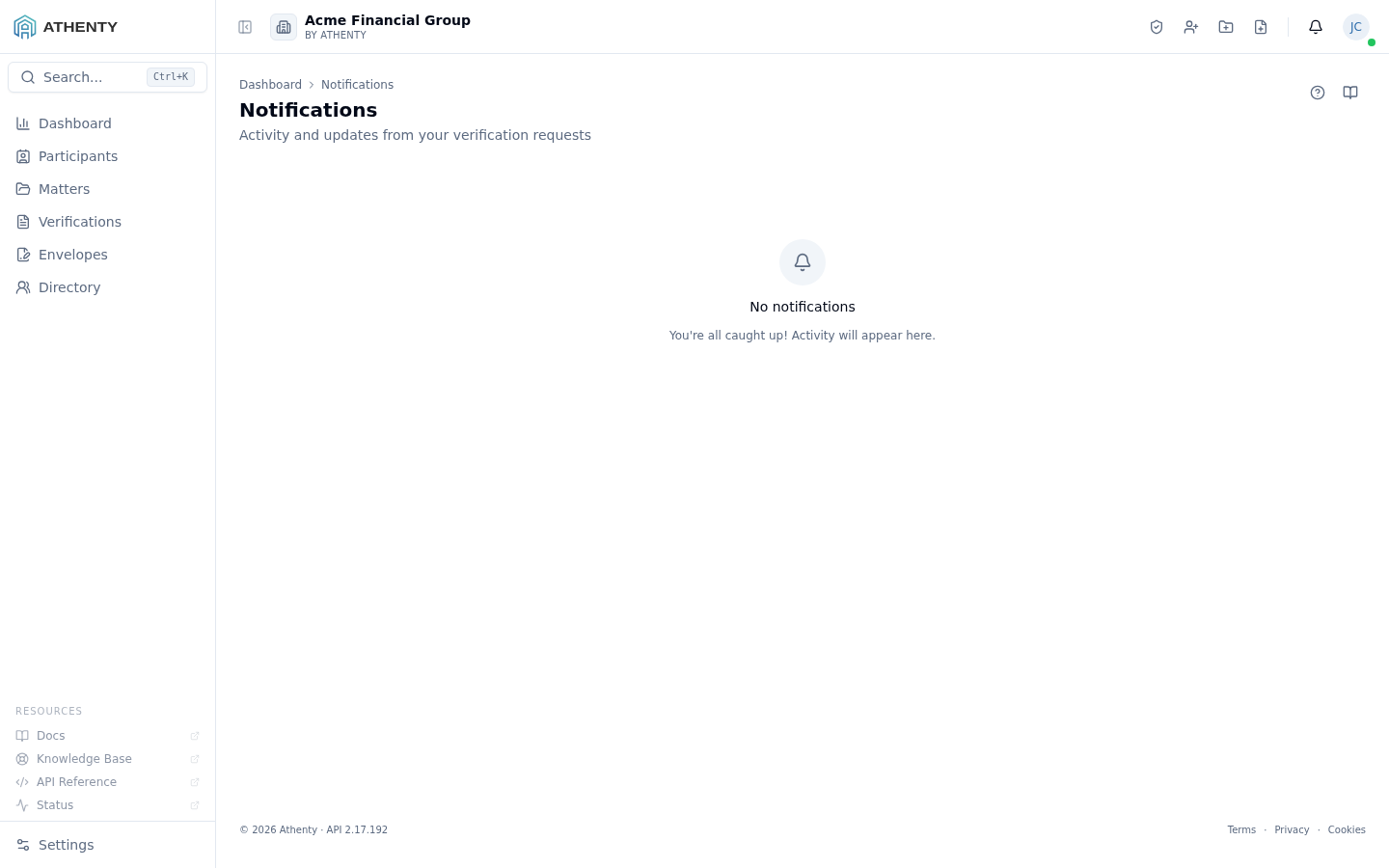
Anatomy of the page
Section titled “Anatomy of the page”1. Header and utility icons
Section titled “1. Header and utility icons”The page header shows the title Notifications, a one-line description, and the standard Help (?) and Docs (book) icons. When you have unread notifications, a Mark all read button appears to the right of the utility icons. The button is hidden when there is nothing to clear.
2. Date groups
Section titled “2. Date groups”Rows are grouped under sticky headers that scroll with the list:
- Today — anything that arrived since local midnight
- Yesterday — the previous calendar day
- Earlier — everything older, in reverse chronological order
If a group has no rows it is hidden — you won’t see an empty Yesterday header.
3. Notification row
Section titled “3. Notification row”Each row is a single button. Clicking it:
- Marks it read (server-side; the badge updates everywhere).
- Navigates to the deep link if one is attached (verification, matter, or envelope detail).
The row itself shows a coloured type dot, a title, an optional
description, and a timestamp in both relative (3 hours ago) and
absolute (Mar 5, 2026, 10:14) form. Unread rows carry a soft primary
background tint and a right-edge dot.
Notification types and colours
Section titled “Notification types and colours”| Type | Color | Trigger |
|---|---|---|
| Request submitted | Blue | Client started or returned a verification for review |
| Request approved | Green | A reviewer marked the verification approved |
| Request rejected | Red | A reviewer marked it rejected — follow-up required |
| Request created | Violet | A new verification was assigned to you |
| Request expired | Orange | The client did not complete in time |
| Other / system | Grey | Billing, integrations, platform events |
These colours mirror the dots used on the dashboard’s Recent activity card and inside the Smart Inbox.
Bulk actions
Section titled “Bulk actions”- Mark all read — clears the unread state across every group at once. The rows stay visible; only the unread tint is removed. The button is hidden when there are zero unread notifications.
There is intentionally no bulk-delete: notifications are an audit trail, not a to-do list. To reduce future volume, tune your Account ▸ Notifications preferences instead.
Preferences and routing
Section titled “Preferences and routing”What appears here is governed at two levels:
- Per-user under Account ▸ Notifications — channel toggles for each notification type (in-app, email, SMS).
- Per-tenant under Settings ▸ Notification Templates (admin-only) — default templates for the email/SMS rendering and any quiet-hours window.
Permissions and scope
Section titled “Permissions and scope”Notifications are per-user — you only see what was generated for you. Owners and admins do not have a “see everyone’s notifications” view; cross-team visibility lives in the Audit Log under settings.
Troubleshooting
Section titled “Troubleshooting”| Symptom | Most likely cause | Fix |
|---|---|---|
| Empty list | Brand-new tenant or all activity older than retention window | Trigger a verification; check Settings ▸ Audit Log for older trail |
| Click does nothing | Linked record has been deleted | The notification is historical only — mark read or ignore |
| Badge stuck after marking read | Background tab missed the sync | Refocus or refresh; counts re-fetch on tab visibility |
| No email for a type you expected | User preferences override or template disabled | Check Account ▸ Notifications then Settings ▸ Notification Templates |
Related pages
Section titled “Related pages”- Dashboard — the Recent activity card surfaces a slice of this list
- Account ▸ Notifications — your per-channel preferences
- Settings ▸ Notification Templates — admin-level template + quiet hours
- Settings ▸ Audit Log — long-term historical trail beyond the notifications retention window