
New Envelope
The New Envelope page is the linear wizard that opens when you click
New envelope from the Envelopes list, dashboard quick-actions, or
elsewhere in the portal. The same component also handles editing an
existing envelope (?edit=<id>), with the Template step automatically
skipped.
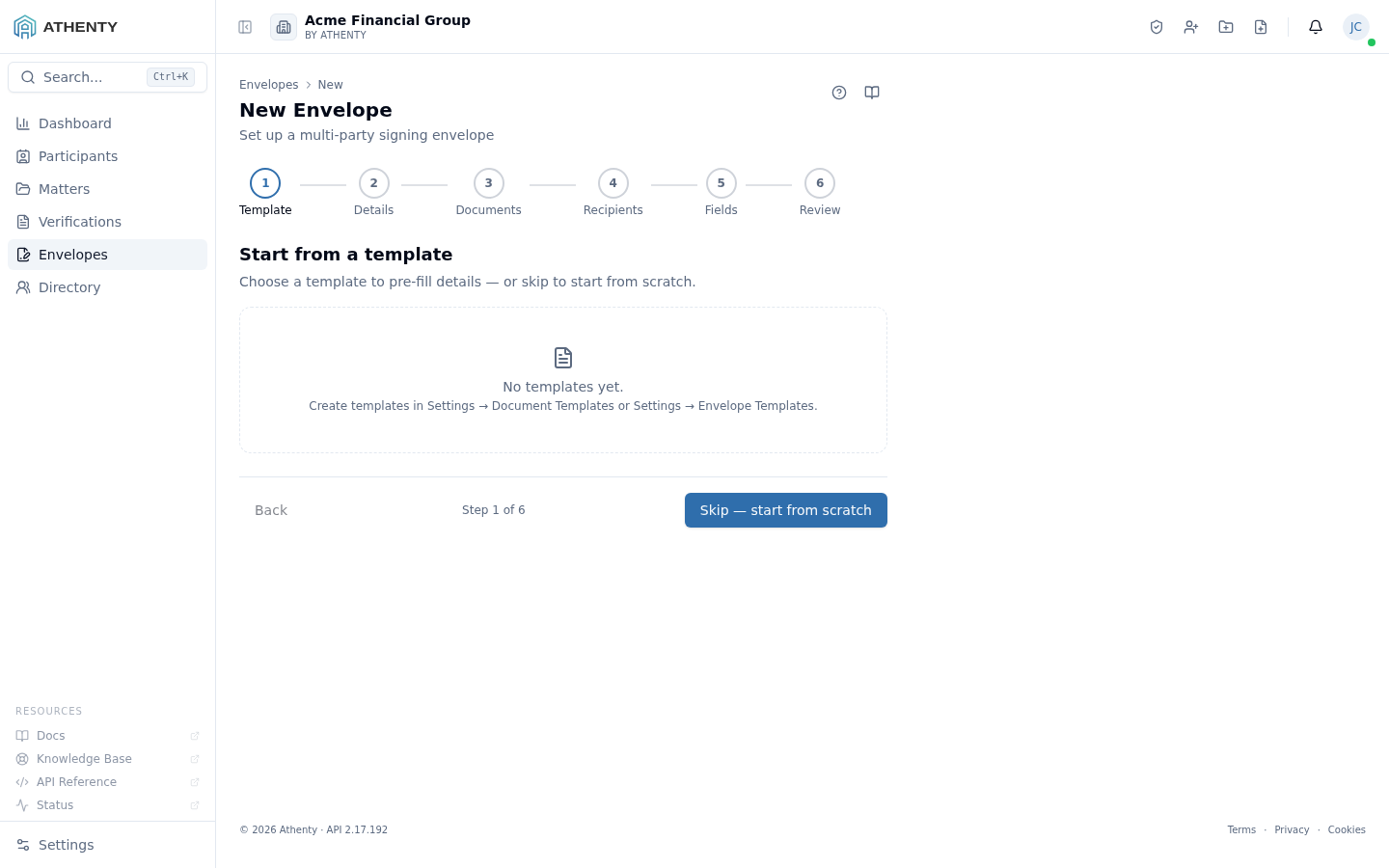
Anatomy of the page
Section titled “Anatomy of the page”1. Page header
Section titled “1. Page header”Standard PageHeader with a dynamic title (New Envelope or
Edit Envelope) and description. Breadcrumbs link back to the Envelopes
list and, in edit mode, to the envelope detail page. The submit action lives
inside the wizard, on the Review step.
2. Step rail
Section titled “2. Step rail”The vertical step rail uses the shared StepWizard component — the same chrome you see on the New Verification page. Steps light up as you complete them; you can jump backwards by clicking any completed step.
3. Step body
Section titled “3. Step body”The body changes per step — selectable cards on Template, a form on Details, a drop-zone on Documents, a recipient builder on Recipients, a field placement canvas on Fields, and a summary on Review.
The six steps
Section titled “The six steps”1. Template
Section titled “1. Template”Three options:
- Pick an Envelope Template — a complete ready-to-send packet with documents, recipients, fields, and defaults
- Pick a Document Template — a single-document template rendered with merge fields, then uploaded to the envelope
- Skip — start from scratch — proceed with an empty envelope
Templates are configured under Settings ▸ Envelope Templates and Settings ▸ Document Templates.
2. Details
Section titled “2. Details”Form fields:
- Subject (required) — email subject line and list display name. Defaults to the template name when a template is picked.
- Message — body text the recipient sees in the invite email. Optional.
- Matter (required) — the case file this envelope is attached to. Same compliance gate as verifications.
- Signing mode — Parallel or Sequential.
- Expiry — date + optional time. Default 60 days.
- Reminder cadence — none, daily, every 2/3 days, or weekly.
In edit mode, the Matter picker renders read-only — matter is immutable post-create.
3. Documents
Section titled “3. Documents”Drop-zone supporting one or more PDFs. If you came from a template, the documents are pre-uploaded; you can still add or remove. The wizard refuses to advance until at least one document is attached.
4. Recipients
Section titled “4. Recipients”Build the signer list inline. Each row captures name, email, order (in sequential mode), and role. Re-order via drag handles. Template-derived roles render as pre-filled slots for you to fill in the actual people.
5. Fields
Section titled “5. Fields”Drag-and-drop canvas over the document preview. Drop signature, initial, date, and text fields onto the page and assign each to a recipient by clicking through the field’s properties. Pre-placed fields are required for anything where placement matters; a field-less envelope lets recipients draw a signature anywhere on the page.
6. Review
Section titled “6. Review”Final summary with the document list, recipient order, and the resolved expiry timestamp. Clicking Send envelope dispatches invites (all at once in parallel mode, or to recipient #1 in sequential mode) and navigates to the envelope detail page.
In edit mode the button reads Save changes and, on click, presents an alert asking whether to notify signers of the update.
Submitting
Section titled “Submitting”The submit flow:
- Validates all required fields (Zod schema).
- Persists envelope state server-side (idempotent — a draft envelope exists from step 2 onwards).
- Calls
POST /envelopes/:id/sendto dispatch invites. - Navigates to the envelope detail page where you can monitor signing progress.
If validation fails on submit, the wizard scrolls to the offending step and surfaces the error inline.
Edit mode specifics
Section titled “Edit mode specifics”When ?edit=<id> is present:
- Step 0 (Template) is hidden.
- Matter picker is read-only.
- All mutations are silent — no per-operation emails — until the user explicitly chooses to publish.
- The publish dialog at the end lets you choose between Notify signers (sends an “envelope updated” email) and Exit without notifying (recipients see the new version next time they open their link).
Permissions and scope
Section titled “Permissions and scope”| Role | Can use the wizard | Edit existing |
|---|---|---|
| Owner / Admin | Yes | Any envelope in the org |
| Member | Yes | Envelopes they own |
| Viewer | No (button hidden on the list) | n/a |
Troubleshooting
Section titled “Troubleshooting”| Symptom | Most likely cause | Fix |
|---|---|---|
| Continue disabled on Documents | No documents uploaded yet | Drop a PDF onto the upload zone |
| Continue disabled on Recipients | No recipients added | Add at least one signer |
| Subject auto-fills with template name | Subject was empty when template was picked | Edit the subject before continuing — subject only auto-fills once |
| Template render fails on apply | Network or template body error | Retry; you can also skip the template and upload manually |
| Save in edit mode but signers don’t see update | You picked Exit without notifying | Open detail page and Resend reminder to push the update |
| Sequential signers stuck after first signs | Recipient #2’s email bounced | Edit recipient #2 and resend |
Related pages
Section titled “Related pages”- Envelopes — list of all envelopes
- Envelopes ▸ Bulk — send the same template to many recipients at once
- Settings ▸ Envelope Templates — your saved envelope packets
- Settings ▸ Document Templates — single-document merge templates