
Bulk Send Envelopes
The Bulk Send page sends the same Envelope Template to many recipients in a single streaming batch. It is the right tool for periodic high-volume signing work — yearly client confirmations, regulatory disclosures, NDAs to a vendor list — where the document and signing flow are identical and only the recipient changes.
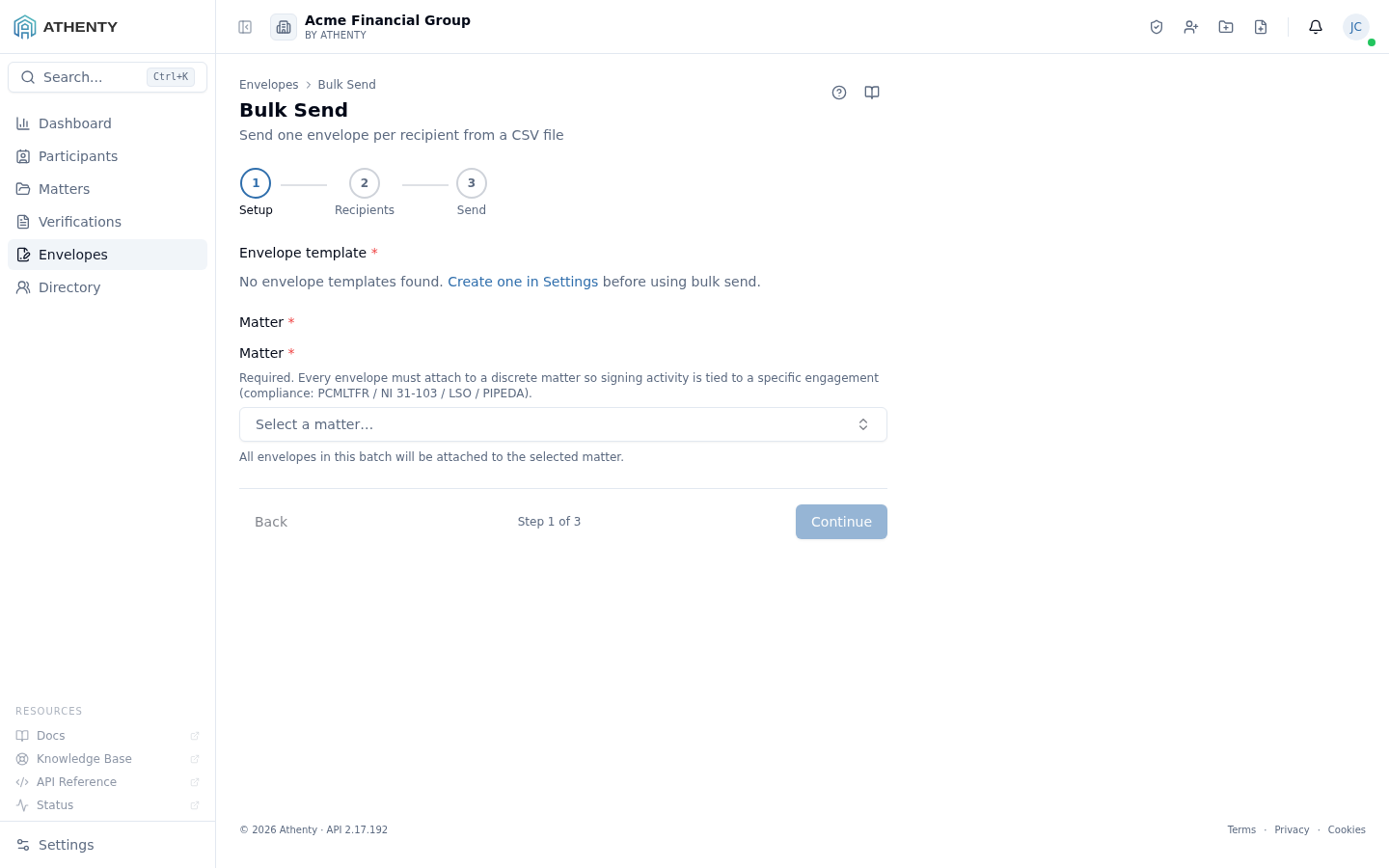
Anatomy of the page
Section titled “Anatomy of the page”1. Page header
Section titled “1. Page header”A standard PageHeader with the title Bulk Send and a one-line description. Breadcrumbs link back to the Envelopes list.
2. Step rail
Section titled “2. Step rail”A three-step StepWizard — Setup, Recipients, Send. Forward navigation gates on each step’s prerequisites.
3. Step body
Section titled “3. Step body”The body changes per step — selectors on Setup, a drop-zone + table on Recipients, and a streaming progress list on Send.
The three steps
Section titled “The three steps”1. Setup
Section titled “1. Setup”Two required fields:
- Envelope Template — choose from your saved envelope templates. Document Templates are not eligible for bulk send (only complete envelope packets work). The footer line shows signer slot count, signing mode, and expiry days for the chosen template.
- Matter — every envelope in the batch attaches to the same matter for compliance and retention. Same picker as the New Envelope wizard.
If no envelope templates exist, the wizard surfaces an inline link to Settings ▸ Envelope Templates rather than a generic empty state.
2. Recipients
Section titled “2. Recipients”Drag-and-drop CSV upload, with a Sample CSV download for the required-headers format. The parser is streaming and validates each row against the schema:
| Column | Required | Description |
|---|---|---|
email | Yes | Recipient email; must be unique within the file |
display_name | Yes | Recipient name used in the envelope and audit PDF |
signer_role | No | Maps to a role in the chosen template (defaults to first role) |
custom_message | No | Per-recipient message appended to the template’s invite body |
Maximum 500 rows per upload. Invalid rows are flagged inline and excluded from the send; you can fix them in your spreadsheet and re-upload without losing wizard state.
A row preview pane lists every parsed row with its email, display name, and validation badge (✓ Valid or ⚠ with the specific error message).
3. Send
Section titled “3. Send”Pre-flight summary card showing the chosen template, matter, and a warning banner if the template has zero documents (those envelopes will be created as drafts).
Clicking Send opens a streaming connection to the API. Each row’s status updates in real time:
- Waiting — queued
- Sent — envelope created and invite dispatched (link → detail page)
- Draft — envelope created without documents (link → re-open in the New Envelope wizard)
- Failed — error per row, hover for the message
When the stream completes, a summary card appears with totals: sent / draft / failed / total.
CSV format and tips
Section titled “CSV format and tips”email,display_name,signer_role,custom_messagealice@example.com,Alice Tan,Client,Welcome — please review and signbob@example.com,Bob Lee,Counsel,carla@example.com,Carla Mendoza,Client,Encoding tips:
- Save as UTF-8 if you have non-ASCII names. Excel sometimes defaults to Windows-1252 and breaks accents.
- Empty optional columns must still have the column header in the file — leave the cell empty rather than dropping the column.
Status meanings
Section titled “Status meanings”| Status | What it means | What to do |
|---|---|---|
| Waiting | Queued; not yet processed by the server | Wait for the stream |
| Sent | Envelope created, invite dispatched | Click to open the detail page |
| Draft | Envelope created without docs (template had none) | Click to open in the New Envelope wizard and finish |
| Failed | Server error for that row | Hover for the reason; re-upload a corrected row |
Permissions and scope
Section titled “Permissions and scope”| Role | Can use Bulk Send |
|---|---|
| Owner / Admin | Yes |
| Member | Yes — for matters they are assigned to |
| Viewer | No |
All envelopes created in the batch attribute the running user as the sender, including for downstream notifications (the Active tab Sender filter will show your name).
Idempotency
Section titled “Idempotency”The bulk-send endpoint is idempotent on (template_id, recipient_email) so
a partial failure mid-stream can be re-run safely — already-created
envelopes are returned as sent without re-emailing. This makes Bulk Send
safe to retry.
Troubleshooting
Section titled “Troubleshooting”| Symptom | Most likely cause | Fix |
|---|---|---|
| ”No envelope templates found” | No templates configured for this org | Create one in Settings ▸ Envelope Templates |
| Every row marked invalid | Wrong column headers in CSV | Download the Sample CSV and copy the header row exactly |
| Many rows in Draft | Selected template has zero documents | Either fix the template or finish each draft manually from its link |
| Send fails midway | Network or rate-limit | Re-run; the endpoint is idempotent on (template, email) so duplicates are not created |
| Encoding-mangled names | CSV saved as Windows-1252 | Re-save as UTF-8 in your spreadsheet app |
Related pages
Section titled “Related pages”- Envelopes — list of created envelopes
- Envelopes ▸ New — single-envelope wizard
- Settings ▸ Envelope Templates — your saved envelope packets
- Matters — every envelope must attach to a matter