
Getting Started
Installation
Section titled “Installation”Chrome, Edge, and Chromium Browsers
Section titled “Chrome, Edge, and Chromium Browsers”- Open the Chrome Web Store and search for Athenty Snap.
- Click Add to Chrome (or Add to Edge).
- Confirm the permissions prompt — the extension needs access to page content to detect identity fields.
- The Athenty Snap icon appears in your browser toolbar. It will appear gray until paired with your account.
Firefox
Section titled “Firefox”- Open Firefox Add-ons and search for Athenty Snap.
- Click Add to Firefox.
- Confirm the permissions prompt.
- The Athenty Snap icon appears in your browser toolbar.
Pairing with Your Athenty Account
Section titled “Pairing with Your Athenty Account”Each browser installation requires a one-time pairing code. You must be logged in to the Athenty admin portal as an admin or owner to generate a code.
Step 1 — Generate a Pairing Code
Section titled “Step 1 — Generate a Pairing Code”- Log in to app.athenty.com.
- Go to Settings → General.
- Scroll to the Browser Extension section.
- Click Pair Extension — a 6-digit code appears inline with a 5-minute countdown.
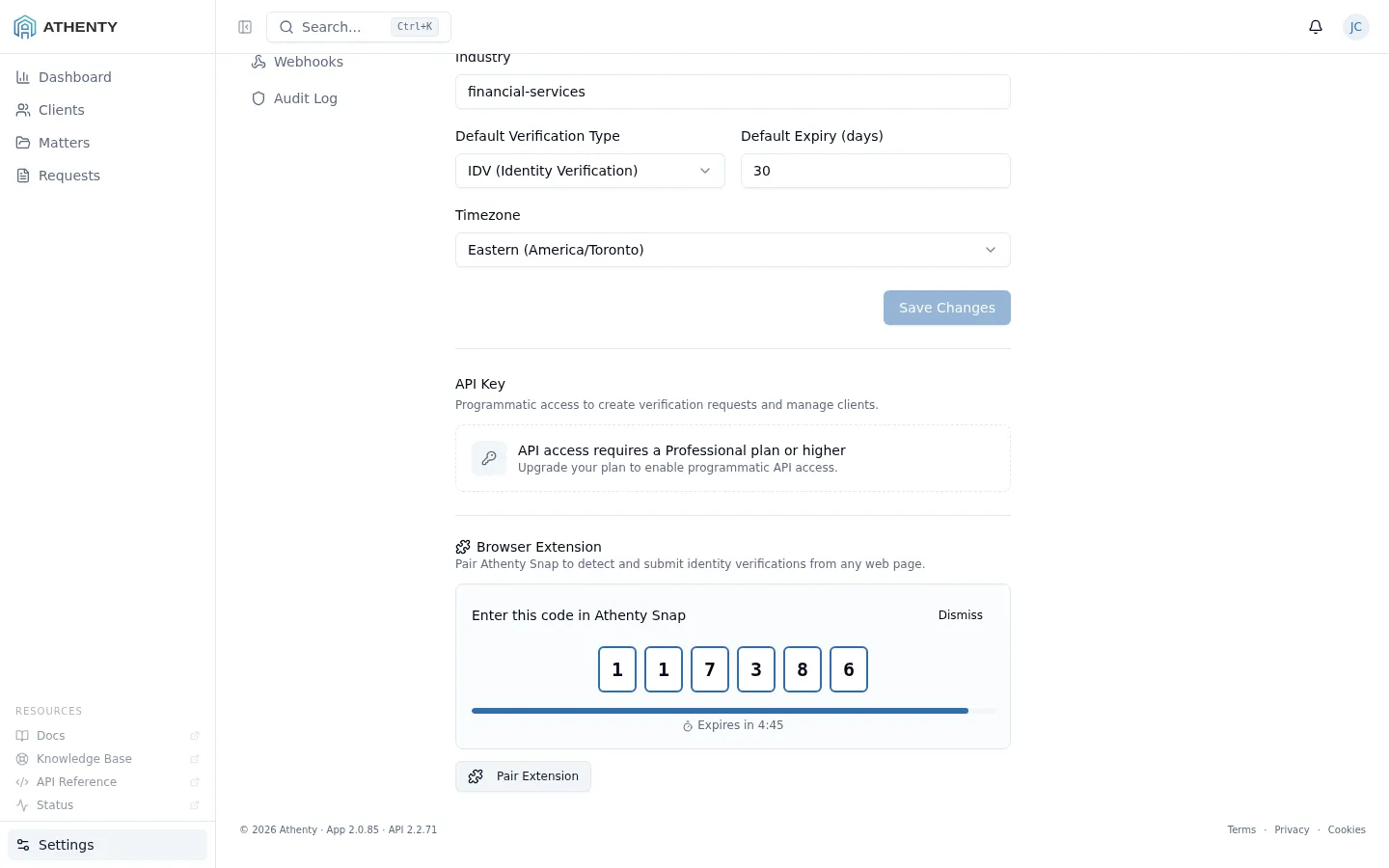
Step 2 — Enter the Code in the Extension
Section titled “Step 2 — Enter the Code in the Extension”- Click the Athenty Snap icon in your browser toolbar.
- The extension shows a code input on first launch.
- Enter the 6-digit code.
- The extension confirms connection with your organization name and your name.
The extension is now paired. The icon remains gray on pages with no detected information, and turns colored when identity fields are found.
Pairing on Additional Browsers
Section titled “Pairing on Additional Browsers”Each browser — Chrome on your work computer, Firefox on your laptop — requires its own pairing code. Repeat the steps above for each browser. All paired extensions are listed under Settings → General → Browser Extension in your dashboard.
Managing Paired Extensions
Section titled “Managing Paired Extensions”View Active Extensions
Section titled “View Active Extensions”Go to Settings → General → Browser Extension in your Athenty dashboard to see a list of all currently paired extensions, including the device name and last-used date.
Revoke an Extension
Section titled “Revoke an Extension”To remove access for a specific browser:
- Go to Settings → General → Browser Extension.
- Find the extension you want to remove.
- Click Revoke.
Revoking one extension does not affect others. The next time that browser tries to use the extension, it will return to the pairing screen.
Disconnect from Within the Extension
Section titled “Disconnect from Within the Extension”You can also disconnect from the extension itself:
- Click the Athenty Snap icon.
- Click the gear icon (Settings) in the top right.
- Click Disconnect.
This removes the local tokens and returns the extension to the pairing screen.
Troubleshooting
Section titled “Troubleshooting”The extension icon stays gray on all pages. The extension needs both a name and an email or phone number on the page to activate. Pages with only a name or only an email will not trigger detection. If you are on a page with all three and it still does not activate, try reloading the page.
The pairing code says “Invalid or expired”. Pairing codes expire after 5 minutes. Return to Settings → General → Browser Extension in your dashboard and generate a new code.
I see “Auth expired” or the extension asks me to re-pair. Extension tokens last 30 days and refresh automatically. If you see this message, generate a new pairing code and re-pair the extension.
The extension is not detecting information on a specific page. Some pages render content dynamically (SPAs). Try scrolling or waiting a moment for the page to fully load, then check again. You can also use the keyboard shortcut Ctrl+Shift+Y (or Cmd+Shift+Y on Mac) to manually trigger a scan.