
Getting Started
Prerequisites
Section titled “Prerequisites”Before installing the Gmail Add-in:
- Your organization must have the Matter Planner add-on enabled on your Athenty account. Check under Settings → Billing or contact your account admin.
- You must be logged in to the Athenty admin portal as a user with at least Member role.
- Your Gmail account must be a Google Workspace account (business or education). Personal
@gmail.comaccounts are not supported by the Google Workspace Add-on platform.
Step 1 — Generate a Pairing Code
Section titled “Step 1 — Generate a Pairing Code”Each installation requires a one-time 6-digit pairing code.
- Log in to app.athenty.com.
- Go to Settings → General.
- Scroll to the Matter Planner Add-ins section.
- Click Pair Gmail Add-In — a 6-digit code appears with a 5-minute countdown.
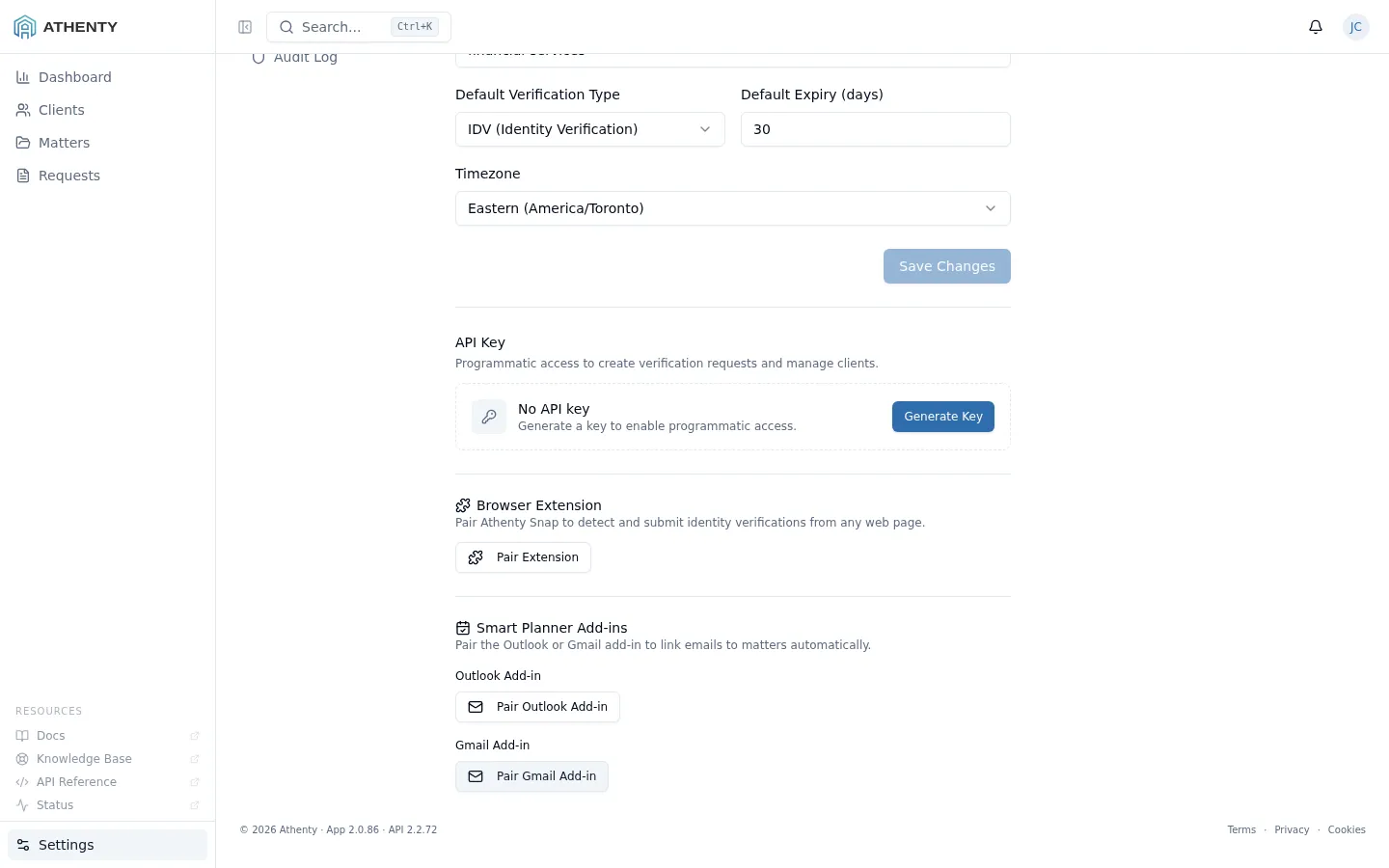
Keep this tab open. You will enter the code in Step 3.
Step 2 — Install the Add-on
Section titled “Step 2 — Install the Add-on”From Google Workspace Marketplace
Section titled “From Google Workspace Marketplace”Note: The Athenty Matter Planner Gmail Add-in may not yet be publicly listed on the Google Workspace Marketplace. If you do not find it there, use the early access option below.
- Go to the Google Workspace Marketplace.
- Search for Athenty Matter Planner.
- Click Install and follow the Google authorization prompts.
- Grant the requested permissions: message metadata, message read access, and script execution.
Early Access (Test Deployment)
Section titled “Early Access (Test Deployment)”During the early access period, your Athenty account manager will provide a direct installation link.
- Click the installation link provided by your Athenty contact.
- Review and accept the Google OAuth permission prompt.
- The add-on installs to your Google account.
- Open Gmail — the Athenty Matter Planner icon appears in the right sidebar.
Contact us at athenty.com/contact to request early access if you have not already received a link.
Step 3 — Pair the Add-on with Your Account
Section titled “Step 3 — Pair the Add-on with Your Account”- Open any email in Gmail.
- Click the Athenty Matter Planner icon in the Gmail right sidebar (it looks like the Athenty logo).
- A card prompts you to enter your 6-digit pairing code.
- Enter the code you generated in Step 1.
- The card confirms your organization name and your name.
The add-on is now paired. It uses this session going forward and refreshes its token automatically.
Using the Add-on on Mobile
Section titled “Using the Add-on on Mobile”Because this is a Google Workspace Add-on (not a Chrome extension), it is also available in Gmail for Android and iOS automatically once installed.
- Open the Gmail app on your phone.
- Open any email.
- Tap the Athenty Matter Planner icon in the email action bar (you may need to tap the overflow “more” button to find it the first time).
- The Athenty card renders in the Gmail sidebar panel.
- If this is the first time on this device, you will be prompted to enter a pairing code — generate one from your Athenty dashboard.
Managing the Add-on
Section titled “Managing the Add-on”View Active Sessions
Section titled “View Active Sessions”Go to Settings → General → Matter Planner Add-ins in your Athenty dashboard to see all currently paired sessions, including channel (outlook, gmail, snap) and last-used date.
Revoke a Session
Section titled “Revoke a Session”To remove access for your Gmail add-on session:
- Go to Settings → General → Matter Planner Add-ins.
- Find the entry labelled Gmail Add-in.
- Click Revoke.
The next time the add-on loads, it returns to the pairing screen.
Sign Out from Within the Add-on
Section titled “Sign Out from Within the Add-on”- Open any email in Gmail so the Athenty sidebar card loads.
- Tap the Settings icon (gear) in the card header.
- Tap Sign out.
Troubleshooting
Section titled “Troubleshooting”The add-on icon does not appear in the Gmail sidebar. Wait a few minutes after installation for Google to propagate the add-on. If it still does not appear, try reloading Gmail. On mobile, close and reopen the Gmail app.
“Session expired. Please re-pair.” Your refresh token has expired or been revoked. Generate a new pairing code in Settings → General → Matter Planner Add-ins and enter it in the add-on pairing card.
“Upgrade required” appears instead of the matter picker. Matter Planner is not enabled on your organization’s plan. Go to athenty.com/pricing or contact your admin.
The pairing code says “Invalid or expired”. Pairing codes expire after 5 minutes. Return to Settings → General → Matter Planner Add-ins in your dashboard and generate a new code.