
Client Portal
This guide shows what your clients see when they sign in to the client
portal at clients.athenty.com — and exactly how their view changes with
the access level you grant on each matter. Use it to set expectations with
clients and to answer “why can’t I see…?” questions quickly.
Staff-side controls live on the matter’s Participants ▸ Clients sub-tab; this page describes the result from the client’s side of the glass.
Signing in
Section titled “Signing in”Clients sign in with their email address and a one-time code — there is no password to remember or reset. If your organization requires it, an SMS verification step follows. A client whose email appears across several organizations (or firms) gets an organization switcher so each firm’s portal stays separate.
The portal is branded with your organization’s name and logo alongside Athenty’s, so clients always know whose portal they are in.
What a client sees
Section titled “What a client sees”The portal has three areas in the navigation — Dashboard, Matters, and Invoices — plus a profile page. What appears inside each is driven entirely by the per-matter access you grant:
| Access level | What the client gets |
|---|---|
| Matter info (always included with any grant) | The matter’s Overview tab: lifecycle status, shared Critical Dates, the legal team, and a recent-updates feed |
| + Communications | A Discussions tab — secure messages and attachments with your team |
| + Documents | A Documents tab — files in folders you’ve marked shared with client, with watermarked download |
| + Uploads | An Uploads tab — the client sends documents to your team (see below) |
| + Billing | A Retainer tab on the matter, plus the global Invoices section |
| + Approvals | An Approvals tab to approve / decline matter requests |
Tabs the client doesn’t have simply don’t exist in their view — a base-level client sees only the Overview tab, with no hint of discussions, documents, billing, or approvals. The Invoices navigation item appears only when the client has Billing on at least one matter.
Two scoping rules worth knowing when a client asks:
- Documents are double-gated. Even with the Documents capability, a client sees only files inside folders marked shared with client. A file in an unshared folder is invisible — it doesn’t appear in the list or the updates feed, and its link won’t resolve.
- Only shared Critical Dates appear. Internal dates stay internal; clients see the dates your team has explicitly shared.
Access changes you make take effect on the client’s next click — no sign-out/sign-in required.
Sending documents to your team (Uploads)
Section titled “Sending documents to your team (Uploads)”With the Uploads capability, the matter gets an Uploads tab where the client drags & drops (or browses for) files to send to your firm. What the client experiences:
- Where files go. Everything lands in a Client Uploads folder in the matter’s Drive on your side, marked “client name (client)” — the client never sees the rest of the Drive from this tab, only their own uploads.
- Safety checks, visibly. Each file shows a status badge: Checking… while it is virus-scanned, then Received. Unsafe or disallowed file types (executables, scripts, and anything not on the document/image/ audio/video allow-list) are rejected on the spot with a plain-language message. Files are capped at 100 MB each, with sensible daily limits per client.
- Zip archives unpack themselves. A client can send one
.zipof many documents — it unpacks into a subfolder mirroring the archive’s own folder structure, and every file inside is checked individually. - No take-backs. Clients can re-download their own uploads but cannot delete, rename, or move them — an upload is part of the matter record. If something was sent in error, the client tells your team (e.g. via Discussions) and staff remove it from the Drive, leaving an audit trail.
- Your team knows immediately. The matter’s assigned staff get an in-app notification for every client upload (“Alice uploaded closing-documents.zip — 4 files unpacked”).
Uploads is independent of Documents — a client can be upload-only, view-only, or both, depending on what you grant.
When a matter closes
Section titled “When a matter closes”What the client experiences depends on the close-out policy your team set on the matter:
- Hard cutoff — the matter disappears from their portal immediately.
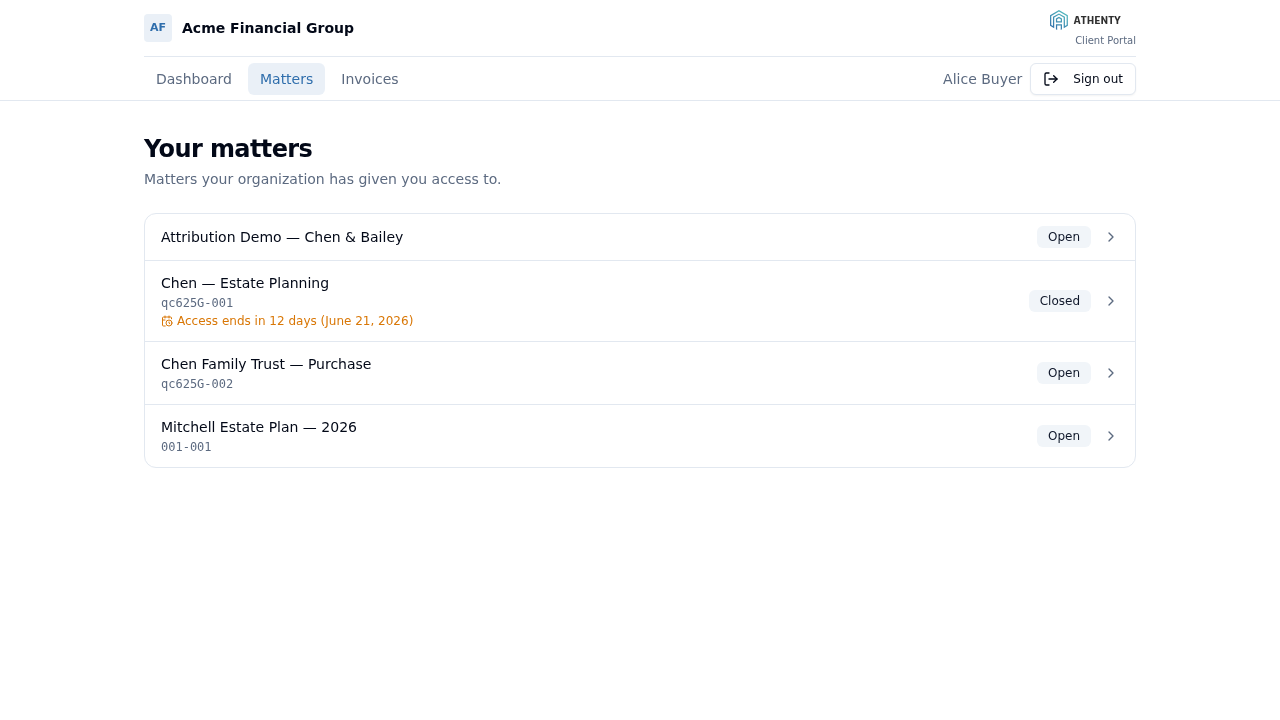
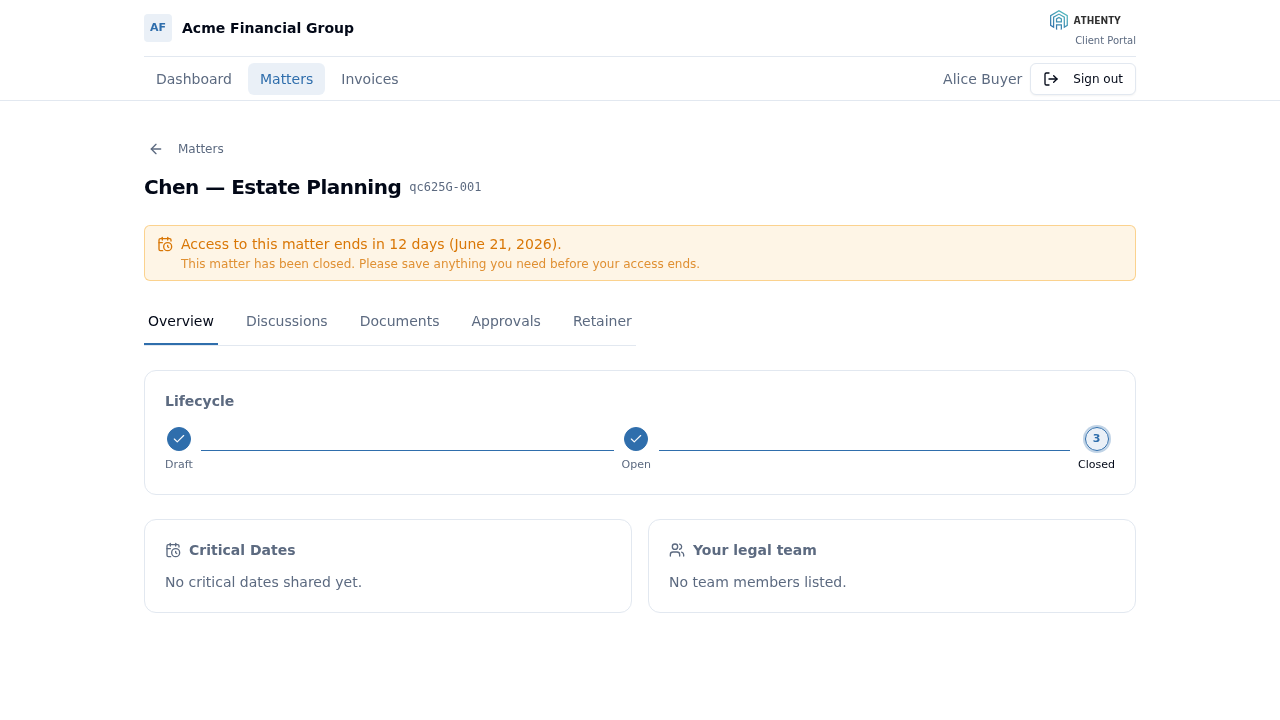
- 30-day grace — the client is emailed the removal date and the portal shows a countdown until access ends, so the matter never just vanishes.
On the grace path the countdown appears on the matters list:
…and as a banner on the matter itself, reminding the client to save anything they need before access ends:
When the removal date passes (or immediately, on a hard close), the matter leaves the portal. If your team reopens the matter, it returns with the client’s access unchanged.
What clients can never see
Section titled “What clients can never see”Regardless of access level, the portal never exposes internal rates or dockets, unshared documents or dates, your team’s internal notes, or any matter the client isn’t granted on. A link to a matter the client can’t access shows “Matter not found” — the portal never confirms the existence of something they can’t see.
Related pages
Section titled “Related pages”- Participants ▸ Clients — granting and managing portal access
- Client Experience overview — the verification journey