
Envelopes
The Envelopes page is the operational list of every e-signature envelope your organization has ever created. The page mirrors the layout of the Verifications list — status tabs, filters, bulk actions — so the same triage muscle works here too.
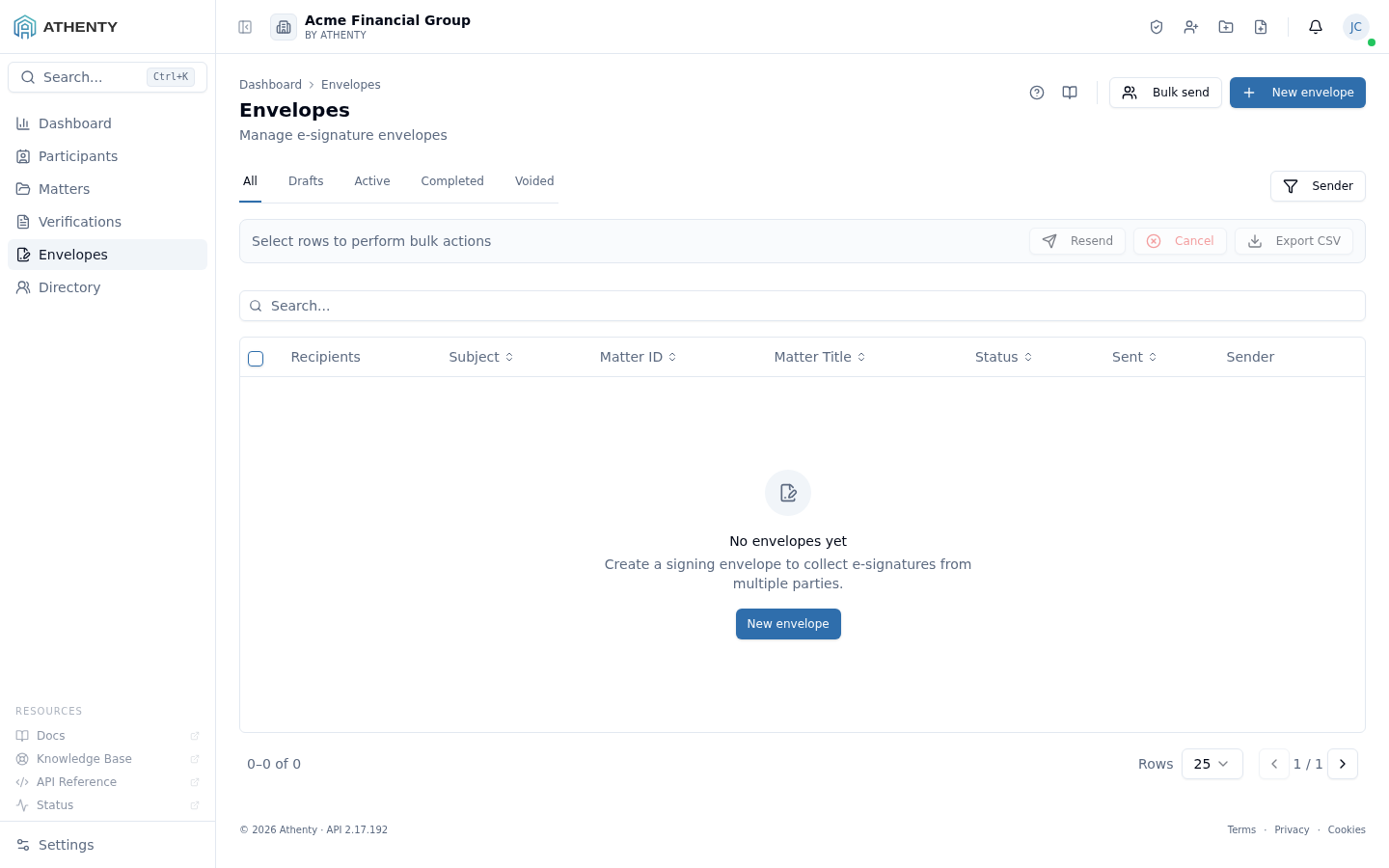
Anatomy of the page
Section titled “Anatomy of the page”1. Header and primary actions
Section titled “1. Header and primary actions”The header shows the title Envelopes, a one-line description, and the standard Help (?) and Docs (book) icons. Two primary actions sit to the right:
- Bulk send — opens the bulk creation wizard at
/envelopes/bulk - New envelope — opens the standard creator wizard at
/envelopes/new
2. Tabs
Section titled “2. Tabs”Five tabs partition the data by lifecycle status:
| Tab | Status mapping | Typical use |
|---|---|---|
| All | (no filter) | Search, advanced filtering, audits |
| Drafts | draft | Envelopes saved but not sent |
| Active | sent, partially_signed | Today’s signing work-queue |
| Completed | completed | Audit downloads, reporting |
| Voided | declined, canceled, expired | Drop-off analysis |
Active is the natural home for most users — sent envelopes that have not yet finished collecting all signatures.
3. Sender filter
Section titled “3. Sender filter”A single-select dropdown that narrows the list to envelopes created by a specific user. Combines with the active tab — a row must match both.
4. Envelope table
Section titled “4. Envelope table”Each row shows:
- Recipients — avatar group with progress dots
- Subject — bold, truncated; the friendly envelope name
- Matter ID and Matter Title — clickable to open the matter
- Status — colour-coded pill plus a sub-line
N of M signedwhen relevant - Sent — relative date of invite dispatch
- Sender — the user who created the envelope
Clicking a row opens the envelope detail page, where you can preview the document, see the per-signer audit trail, resend an individual reminder, or download the audit-stamped completed PDF.
Bulk actions
Section titled “Bulk actions”Select rows to surface the bulk action bar:
- Resend — re-emits reminders to every unsigned recipient on every
selected envelope. Only valid for
sentandpartially_signedrows; the button is disabled if the selection has zero eligible rows. - Cancel — voids the selected envelopes. Recipients lose access; rows move to the Voided tab.
- Export CSV — downloads the selected rows for reporting (subject, recipients, matter, status, sent date, sender).
The bulk-action button labels include a count when the action only applies
to a subset of the selection — e.g., Cancel (3) if 3 of 5 selected rows
are non-terminal.
Status lifecycle
Section titled “Status lifecycle”draft ──▶ sent ──▶ partially_signed ──▶ completed └▶ declined │ └▶ canceled / expired- Draft — saved without dispatch
- Sent — invite delivered, no signatures yet
- Partially signed — some recipients signed
- Completed — every recipient signed; audit-stamped PDF is generated
- Declined — a recipient refused; the envelope is voided
- Canceled — your team voided the envelope
- Expired — past the configured expiry window
The expiry window is configurable per-tenant under Settings ▸ Envelope Templates.
Creating envelopes
Section titled “Creating envelopes”Two creation paths:
- New envelope — the standard wizard for a one-off envelope to one or more named recipients
- Bulk send — for sending the same template to many recipients at once (e.g., a year-end attestation to every client)
Both flows require attaching to a Matter before sending, the same way verifications do — this is the platform’s hard requirement for PCMLTFR / NI 31-103 / LSO retention compliance.
Permissions and scope
Section titled “Permissions and scope”| Role | Visible envelopes | Create | Cancel | Resend |
|---|---|---|---|---|
| Owner / Admin | All | ✓ | ✓ | ✓ |
| Member | Created or assigned to | ✓ | ✓ (own) | ✓ (own) |
| Viewer | Created or assigned to | ✗ | ✗ | ✗ |
Envelopes are scoped to the organization — never cross tenant boundaries.
Troubleshooting
Section titled “Troubleshooting”| Symptom | Most likely cause | Fix |
|---|---|---|
| Empty list | Tab + Sender filter excludes everything | Switch to All, clear the Sender |
| Resend disabled in bulk | No rows in sent/partially_signed | Filter to Active before selecting |
| Cancel disabled in bulk | All selected rows are in terminal states | Filter to Active + Drafts before selecting |
| Recipient didn’t get the email | Address typo or strict spam filtering | Open the detail; edit recipient; resend |
| Matter ID column blank on old rows | Matter requirement post-dates the envelope | Old envelopes keep functioning; matter cannot be backfilled |
Related pages
Section titled “Related pages”- Envelopes ▸ New — the single-envelope creator wizard
- Envelopes ▸ Bulk — the bulk-send wizard
- Settings ▸ Envelope Templates — expiry windows, default text, branded templates
- Matters — every envelope must attach to a matter