
Settings — Notifications
The Settings ▸ Notifications page (formerly the separate Notification Templates and Email Templates pages — unified under issue #188) controls how Athenty’s system-generated notification emails are composed.
Three tabs let you author event-driven templates, the signature line that closes them, and the footer block that runs below every outgoing email.
The page is exposed at /settings/notification-templates; the legacy
/settings/email-templates URL redirects here.
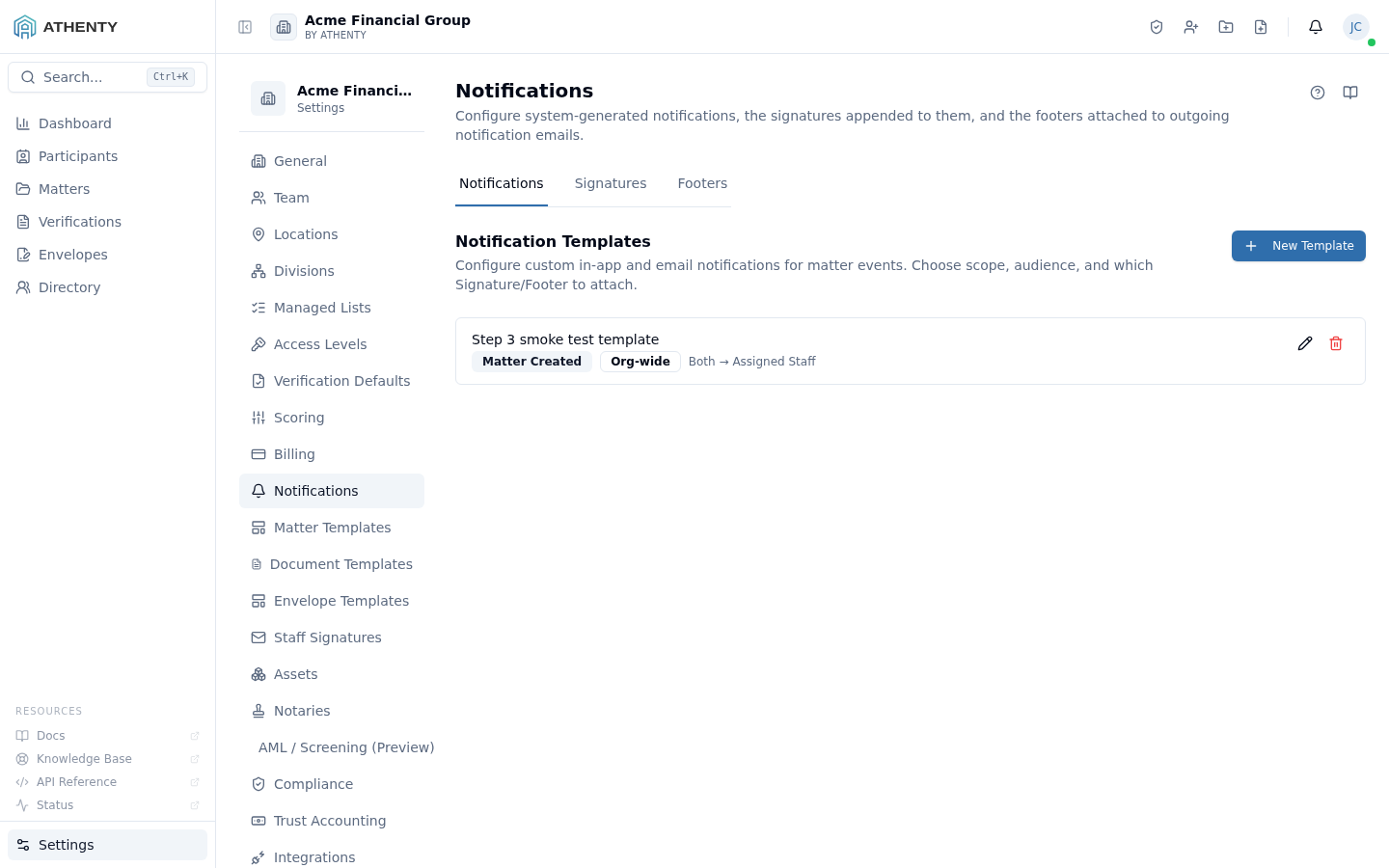
Anatomy of the page
Section titled “Anatomy of the page”1. Page header
Section titled “1. Page header”PageHeader with the title Notifications and a one-line description.
2. Three-tab layout
Section titled “2. Three-tab layout”The page uses a Tabs container with three tabs:
| Tab | Component | Scope |
|---|---|---|
| Notifications | NotificationTemplatesTab | Per-event templates |
| Signatures | KindEditor (kind=signature) | System signature |
| Footers | KindEditor (kind=footer) | System footer |
System vs. staff distinction
Section titled “System vs. staff distinction”The signatures and footers configured here are system — appended to Athenty-generated emails (verification approved, envelope completed, etc.). They are separate from Staff Signatures (under Settings ▸ Staff Signatures), which are the personal signatures each staff member uses on their own outgoing emails.
Notifications tab
Section titled “Notifications tab”Each row is one event template. The default seed ships with templates for every typed event the platform emits:
request.created,request.approved,request.rejected,request.expiredenvelope.sent,envelope.completed,envelope.declined,envelope.expiredmatter.created,matter.sharedauth.password_changed,auth.2fa_enabled- …and more
For each row:
- A toggle — disable to suppress the email entirely
- Subject + body — editable with merge-token autocomplete
- A Test send action — emails the template to your account with synthetic data
Merge token model
Section titled “Merge token model”Tokens use {{token_name}} syntax. The editor’s right pane lists every
token valid for the current event so you don’t have to memorize them:
| Token | Resolution |
|---|---|
{{client_name}} | Display name from the subject/recipient |
{{matter_id}} | Matter reference (when applicable) |
{{org_name}} | Tenant name |
{{action_url}} | Deep link the CTA points to |
{{event_specific_*}} | Per-event tokens (e.g., verification_score) |
Tokens that don’t resolve render as the literal {{token_name}} —
useful for catching typos.
Signatures tab
Section titled “Signatures tab”The KindEditor in signature mode renders an HTML editor with:
- Sanitized HTML support (bold, italic, lists, links, images)
- Image embedding from Settings ▸ Assets
- Auto-generated plain-text fallback
- Optional per-division override (when divisions are configured under Settings ▸ Divisions)
The signature is appended to every notification email after the body and before the footer.
Footers tab
Section titled “Footers tab”KindEditor in footer mode — a free-form block appended below every
notification email. Common patterns:
- Regulatory boilerplate (“This communication is privileged …”)
- Physical address footer
- Unsubscribe / preference-management instructions
The footer is org-wide. No per-division override.
Permissions and scope
Section titled “Permissions and scope”| Role | View | Edit |
|---|---|---|
| Owner / Admin | ✓ | ✓ |
| Member | Indirect (sees emails) | ✗ |
| Viewer | ✗ | ✗ |
Audit logging
Section titled “Audit logging”| Action | Event |
|---|---|
| Edit template | notification_template.updated |
| Toggle active | notification_template.toggled |
| Edit signature | org.notification_signature_updated |
| Edit footer | org.notification_footer_updated |
Events surface in Settings ▸ Audit Log.
Test sends
Section titled “Test sends”The Test send action is a synthetic-data render to your account email. It exercises the same render pipeline real events use, so any token resolution problems surface immediately.
The synthetic event uses metadata.test = true, but the email body
itself reads as a real email — pay attention to subject and merge
field rendering when proofreading.
Troubleshooting
Section titled “Troubleshooting”| Symptom | Most likely cause | Fix |
|---|---|---|
Token shows as literal {{token}} | Token typo or not valid for event | Use editor autocomplete |
| Test send doesn’t arrive | Account email landed in spam | Check spam; verify SPF/DKIM |
| Per-division signature ignored | User has no division set | Set under Settings ▸ Team ▸ <user> |
| Footer truncated by recipient client | Too long for Outlook | Trim under 200 chars |
| Save fails | Subject empty (required) | Fill subject |
Related pages
Section titled “Related pages”- Settings ▸ Staff Signatures — distinct from system signatures here
- Settings ▸ Assets — logos referenced by signature/footer
- Settings ▸ Audit Log —
notification_template.*events