
Getting Started
Prerequisites
Section titled “Prerequisites”Before installing the Outlook Add-in:
- Your organization must have the Matter Planner add-on enabled on your Athenty account. Check under Settings → Billing or contact your account admin.
- You must be logged in to the Athenty admin portal as a user with at least Member role.
- You must have access to Outlook Web, new Outlook for Windows, classic Outlook for Windows, or Outlook for Mac.
Step 1 — Generate a Pairing Code
Section titled “Step 1 — Generate a Pairing Code”Each installation requires a one-time 6-digit pairing code.
- Log in to app.athenty.com.
- Go to Settings → General.
- Scroll to the Matter Planner Add-ins section.
- Click Pair Outlook Add-In — a 6-digit code appears with a 5-minute countdown.
Keep this tab open. You will enter the code in Step 3.
Step 2 — Install the Add-in
Section titled “Step 2 — Install the Add-in”Admin-Deployed (Recommended for Organizations)
Section titled “Admin-Deployed (Recommended for Organizations)”If your IT or Athenty admin is deploying the add-in organization-wide:
- Log in to the Microsoft 365 Admin Center.
- Go to Settings → Integrated apps → Upload custom apps.
- Upload the Athenty manifest XML file (provided by your Athenty account manager).
- Assign to the relevant users or groups.
- The add-in will appear in Outlook automatically within 24 hours.
Self-Install (Individual Users)
Section titled “Self-Install (Individual Users)”To install the add-in yourself in Outlook Web or new Outlook for Windows:
- Open Outlook Web (outlook.live.com or your Microsoft 365 mail).
- Open any email.
- Click the Apps button (or the three-dot menu → Get Add-ins).
- Click My add-ins → Add a custom add-in → Add from file…
- Upload the manifest XML file provided by your admin or Athenty account manager.
- The Athenty Matter Planner add-in appears in your add-ins list.
Contact us at athenty.com/contact to request the manifest XML file if you have not already received it.
Step 3 — Pair the Add-in with Your Account
Section titled “Step 3 — Pair the Add-in with Your Account”- Open any email in Outlook.
- Click Athenty Matter Planner in the add-ins toolbar (or in the reading pane overflow menu).
- The task pane opens showing a 6-digit code prompt.
- Enter the code you generated in Step 1.
- The task pane confirms your organization name and your name.

The add-in is now paired. It will use this session going forward and refresh its token automatically.
Managing Paired Add-ins
Section titled “Managing Paired Add-ins”View Active Add-ins
Section titled “View Active Add-ins”Go to Settings → General → Matter Planner Add-ins in your Athenty dashboard to see a list of all currently paired extensions and add-ins, including channel (outlook, gmail, snap) and last-used date.
Revoke an Add-in
Section titled “Revoke an Add-in”To remove access for a specific Outlook installation:
- Go to Settings → General → Matter Planner Add-ins.
- Find the entry labelled Outlook Add-in.
- Click Revoke.
Revoking one add-in installation does not affect other users or channels. The next time that add-in tries to load, it will return to the pairing screen.
Sign Out from Within the Add-in
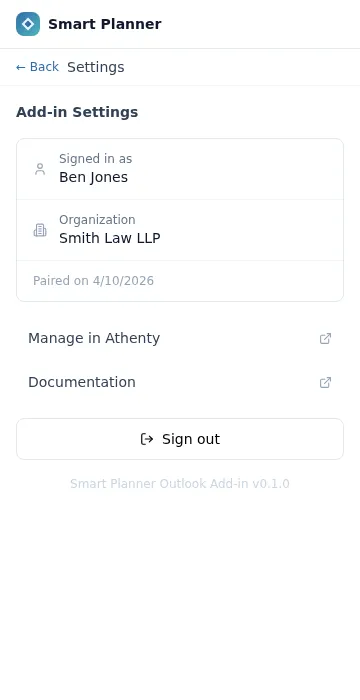
Section titled “Sign Out from Within the Add-in”- Open the Athenty Matter Planner task pane.
- Click the Settings gear icon in the top right of the task pane.
- Click Sign out.
This removes the local token and returns the add-in to the pairing screen.
Troubleshooting
Section titled “Troubleshooting”The add-in does not appear in Outlook. If admin-deployed, allow up to 24 hours for the deployment to propagate. If self-installed, check that the manifest uploaded without errors under My add-ins in Outlook.
The pairing code says “Invalid or expired”. Pairing codes expire after 5 minutes. Return to Settings → General → Matter Planner Add-ins in your dashboard and generate a new code.
The task pane shows “Session expired. Please re-pair.” Generate a new pairing code and repeat Step 3. This can happen if the refresh token was revoked from the dashboard or expired.
Outlook Web works but classic Outlook does not. Check that your version of classic Outlook supports web add-ins (Outlook 2016 or later with Microsoft 365 subscription). Older perpetual-license versions of Outlook have limited add-in support.