
Participants
The Participants page is the cross-matter directory of every individual your organization has interacted with. Where the Clients page focuses on the people you have a service relationship with, Participants is broader — it includes counterparties on the other side of a transaction, third-parties mentioned on a matter, and the staff members assigned to those matters.
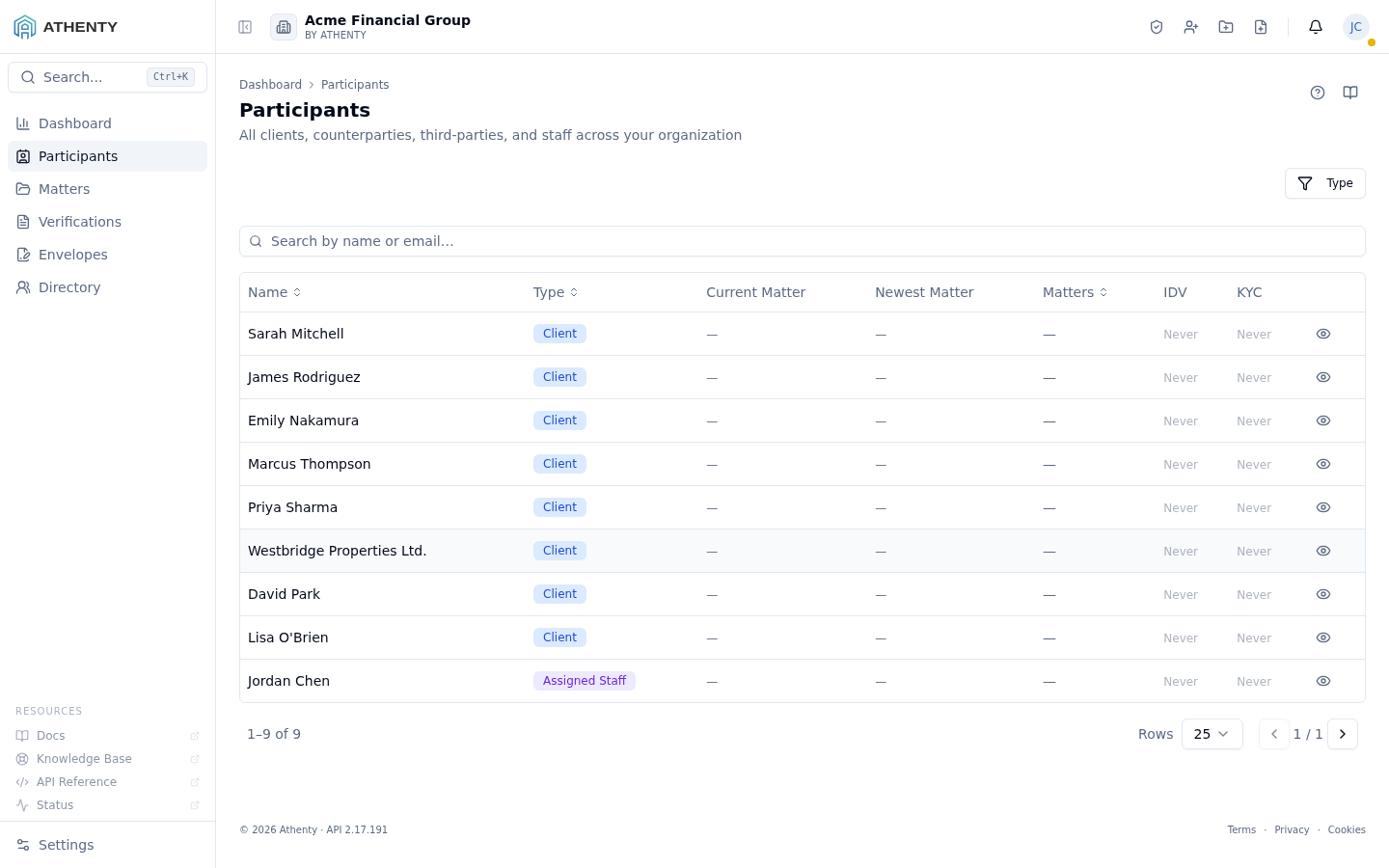
Anatomy of the page
Section titled “Anatomy of the page”1. Header and utility icons
Section titled “1. Header and utility icons”The page header shows the title Participants, a one-line description, and the standard Help (?) and Docs (book) icons in the top-right. Help opens an in-portal slide-out summary; Docs opens this page in a new tab.
2. Type filter
Section titled “2. Type filter”A single-select dropdown lets you narrow the table to one role at a time:
- Clients — people on your side of the transaction
- Counterparties — people on the other side
- Third-parties — non-transacting individuals named on a matter
- Assigned Staff — your own users assigned to matters
Clearing the filter shows everyone.
3. Search
Section titled “3. Search”The search box matches on name and email. Results update as you type and respect the active type filter.
4. Participants table
Section titled “4. Participants table”| Column | Description |
|---|---|
| Name | Display name with a red triangle if a potential conflict has been detected |
| Type | One or more role badges (a single person can be both a client and a counterparty across different matters) |
| Current Matter | Most recently active matter — clickable |
| Newest Matter | Most recently added matter — clickable |
| Matters | Total matter count across all time |
| IDV | Last identity verification date, color-coded by status |
| KYC | Last KYC check date, color-coded by status |
The status colours follow a consistent convention across the portal:
- Green — approved / passed
- Amber — pending / in progress
- Red — rejected
- Orange — expired
- Grey “Never” — no verification on file
How a participant is drawn
Section titled “How a participant is drawn”Every place Athenty shows a person or an entity — this table, a matter’s participant list, any dropdown you pick from, the duplicate-detection warning — uses the same compact representation, so you can read it anywhere without relearning it.
Individual vs entity
Section titled “Individual vs entity”The avatar’s shape carries the type, so it survives greyscale and colour-blindness:
- Circle (light blue) — an individual (a person).
- Square (navy) — an entity: a company, trust, estate, or other non-person participant.
Where there is room for a second line, the type is also written out as an INDIVIDUAL / ENTITY badge.
The Participant ID
Section titled “The Participant ID”The short number beside the name is that participant’s Participant ID — the same identifier that leads their profile, the way a Matter ID leads a matter. It appears at every size and on every surface, including picker rows and the duplicate-detection panel.
Use it to tell two people with the same name apart, and to quote a specific participant to a colleague. Athenty never shows you an internal database identifier in its place.
The gold star (★) — “primary”
Section titled “The gold star (★) — “primary””A gold star immediately left of a name means that one is the primary. It has exactly one meaning wherever it appears:
| Where you see it | What it means |
|---|---|
| Beside a person listed on an entity | That person is a Primary Contact of the entity — the individual you deal with for that company or trust |
| Beside a client on a matter | That client is the matter’s Primary Client |
| Beside a matter on a participant’s profile | That participant is the Primary Client on that matter |
| In the primary-contact picker | That person is already a primary contact of the entity |
The star always carries a spoken label for screen readers (“Primary client”, “Primary contact”), so the meaning never depends on seeing the colour.
An entity can have more than one Primary Contact — designating a new one never removes an existing one — so you may see several starred people on one entity.
Working with the page
Section titled “Working with the page”Daily compliance triage
Section titled “Daily compliance triage”A common workflow is to filter to Clients, scan the IDV and KYC columns for orange or red entries, and reach out to anyone whose verifications are expired or rejected.
Conflict review
Section titled “Conflict review”When the platform detects a person on both sides of two matters, a red triangle appears next to the name. Click into the participant record to see the full list of matters they touch and decide whether the conflict is material.
Relationship history
Section titled “Relationship history”A participant’s Relationships tab records links to other profiles — the same client under two records, a spouse, a director who is also a tenant. Those links change over time, and the change itself is kept: the History button above the list opens the relationship history.
The history records three kinds of event:
| Event | What it records |
|---|---|
| Recorded | A link was created, and the relationship it was recorded as |
| Amended | What the relationship said before, what it says now, and which of Relationship, Direction or Note moved |
| Removed | The relationship that was removed |
Every entry carries the person who made the change and the moment they made it, grouped by day with the most recent first.
Because a relationship is stored once and read from both sides, the history appears on both profiles — each phrased from that side’s point of view (“Director of” on one profile, “Has director” on the other). The two are never out of step, because they are the same record read twice.
This history exists for conflict checking and beneficial-ownership questions, which turn on who was connected and until when, not only on who is connected today.
Jumping to the right profile
Section titled “Jumping to the right profile”The link behaviour from the Name column is type-aware:
- Clients route to the full Client record
- Staff route to their Directory entry
- Counterparties and Third-parties route to the lightweight Participant profile (matter-scoped only)
This means you don’t have to remember which area of the portal a person lives in — clicking the name always opens the correct profile.
Permissions and scope
Section titled “Permissions and scope”| Role | What you see |
|---|---|
| Owner / Admin | All participants across the organization |
| Member | Only participants on matters you are assigned to |
| Viewer | Read-only access — no profile edits |
Participants are scoped to your organization. Cross-tenant data is never exposed here.
Troubleshooting
Section titled “Troubleshooting”| Symptom | Most likely cause | Fix |
|---|---|---|
| Page is empty | No matters have been created yet, or filters are too narrow | Clear the Type filter and search box; if still empty, create a matter and add participants |
| A person is missing | They have not been added to any matter | Open the matter and add them as a participant; they will appear here automatically |
| IDV/KYC always shows “Never” | No verification has been initiated for that person | Open the participant and start a verification from the profile |
| Conflict triangle appears unexpectedly | The platform detected overlap with another matter | Click the participant to review the overlapping matters and judge whether the conflict is material |
Related pages
Section titled “Related pages”- Matters — every matter has a participants tab that mirrors this view, scoped to that matter
- Directory — your internal staff directory (a subset of Participants filtered to staff)
- Verifications — full list of IDV and KYC requests across the organization