
Verifications
The Verifications page is the daily work-queue for compliance teams using Athenty. Everything that gets sent to a client or subject for verification — identity documents, biometric checks, KYC screening, custom share-backs — appears here as a row, lifecycle-tracked from invite through to final approval.
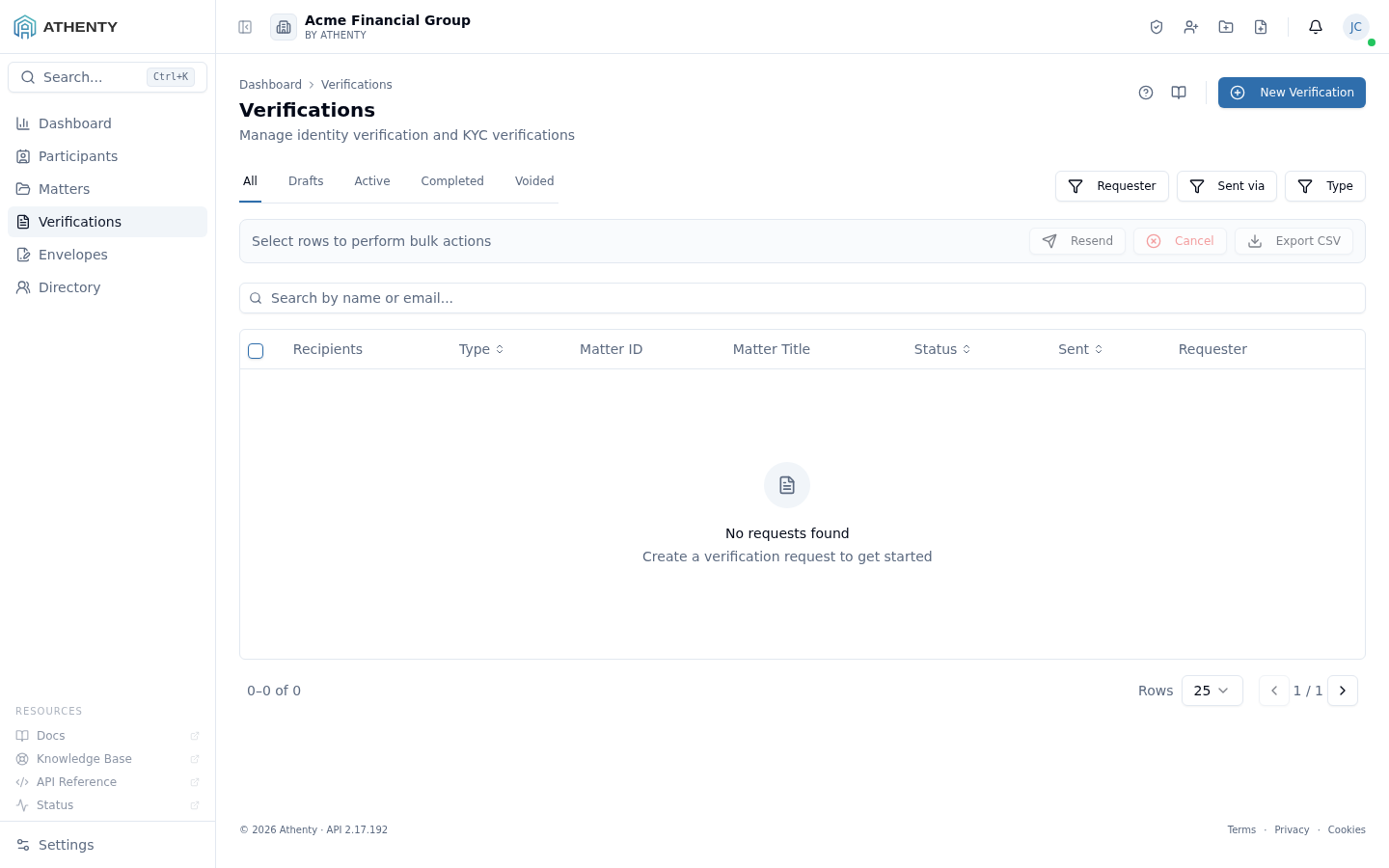
Anatomy of the page
Section titled “Anatomy of the page”1. Header and primary action
Section titled “1. Header and primary action”The page header carries the title Verifications, a one-line description, and the standard Help (?) and Docs (book) icons. The primary action is New Verification, which opens the start flow on a separate page.
2. Tabs
Section titled “2. Tabs”Five tabs partition the data by lifecycle status:
| Tab | Status mapping | Typical use |
|---|---|---|
| All | (no filter) | Search, advanced filtering, audits |
| Drafts | initiated | Verifications started but not sent |
| Active | in_progress, pending_review | Today’s work queue |
| Completed | approved | Reporting, certificate downloads |
| Voided | rejected, canceled, expired | Drop-off analysis |
The Active tab is the natural home for most users — sent invites that have not yet finished.
3. Filters
Section titled “3. Filters”Three dropdown filters sit to the right of the tabs:
- Requester — single-select; narrow to verifications a specific teammate initiated
- Sent via — multi-select; filter by Email, SMS, Link, In-Person, or API delivery channel
- Type — multi-select; IDV, KYC, or Custom
Filters compose with the active tab — a row must match the tab’s status range and every active filter.
4. Verification table
Section titled “4. Verification table”Each row shows:
- Client / Subject — who the verification is for
- Type — IDV, KYC, or Custom badge
- Status — pill colour-coded by lifecycle stage
- Source — channel badge for the invite delivery
- Requester — the user who started the verification
- Created and Last Activity dates
Clicking a row opens the verification detail page, which has the full timeline, captured documents, biometric matches, KYC hits, and the reviewer decision UI.
Bulk actions
Section titled “Bulk actions”Selecting one or more rows surfaces a bulk action bar above the table:
- Cancel — voids the selected verifications. The client invite stops working; the verifications move to the Voided tab.
- Resend invite — re-emits the original invite. Only valid for rows currently in In progress and whose invite has not yet expired.
Selection is preserved across page changes within the table.
Status lifecycle
Section titled “Status lifecycle”initiated ──▶ in_progress ──▶ pending_review ──▶ approved └▶ rejected │ └▶ canceled / expired- Initiated — created in your portal, not yet sent (Drafts tab)
- In progress — invite delivered, client is working through the flow
- Pending review — client finished, waiting on a reviewer
- Approved / Rejected — final reviewer decision (Completed / Voided)
- Canceled — voided by a team member (Voided)
- Expired — client did not complete within the configured window (Voided)
The expiry window is configured per tenant under Settings ▸ Verification Defaults.
Creating a verification
Section titled “Creating a verification”The New Verification button takes you to the start flow at
/verifications/new — a multi-step wizard that picks the type, the subject
(an existing client, a new participant, or a one-off subject), and the
delivery channel. After save the new verification appears on this list under
the Drafts tab (if you stopped before sending) or Active (if you sent the
invite).
Permissions and scope
Section titled “Permissions and scope”| Role | Caseload visible |
|---|---|
| Owner / Admin | All verifications across the organization |
| Member | Their own initiated verifications and any they review |
| Viewer | Read-only view of the rows their role can see |
Verifications are scoped to the organization. A verification never crosses tenant boundaries even if the same client exists in another tenant.
Troubleshooting
Section titled “Troubleshooting”| Symptom | Most likely cause | Fix |
|---|---|---|
| Empty list | Tab + filter combination excludes everything | Click All and clear filters |
| Cancel disabled in bulk | One or more selected rows are in a terminal state | Filter to Active only before bulk-canceling |
| Resend disabled | Invite expired, or the row is not in in_progress | Open the row and click Generate new invite |
| Stalled in Pending review | No reviewer assigned, or reviewer didn’t see the notification | Assign a reviewer on the detail page; verify their Account ▸ Notifications are wired |
| New verification doesn’t appear | Page is still on a stale filter | Switch to All and clear filters |
Related pages
Section titled “Related pages”- Dashboard — high-level funnel and approval-rate charts roll up from this list
- Participants — directory of subjects across all matters
- Settings ▸ Verification Defaults — expiry windows, reviewer assignment rules, default types